Documents Integration
Description
The Documents integration allows an object in FieldTwin to be linked with documents and files held in one or more other web applications.
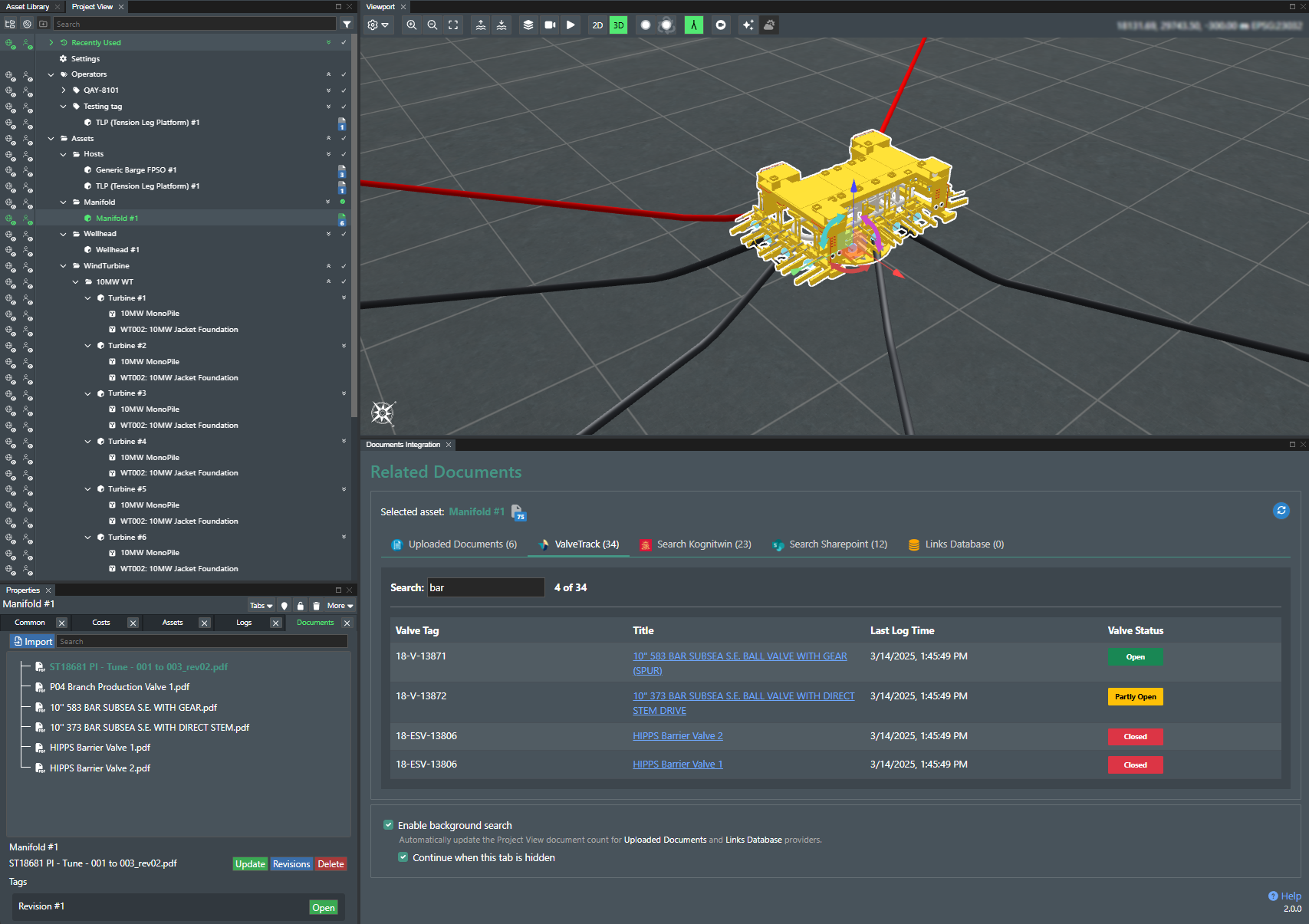
Selecting an item in FieldTwin displays a list of its related documents.
The integration ships with 3 "document sources" as standard:
-
Built-in database of hyperlinks
- Associates document viewing links from any web-based system such as Sharepoint (or even YouTube) with a FieldTwin object -
Dynamic search hyperlinks
- Provides a search link that triggers a search in another web-based system by passing across information about the selected FieldTwin object (such as its unique ID or tag) -
Uploaded documents in FieldTwin
- Shows the list of files and documents that have been stored in FieldTwin against the selected object
The following third-party integrations are also supported and can be enabled on request:
-
Omega365 PIMS
- Integration with Omega365 Project Information Management System (PIMS) API. Provides the capability to display a list of PIMS documents or other records associated with the selected FieldTwin object. -
Bentley ALIM
- Integration with Bentley AssetWise Asset Lifecycle Information Management System (ALIM) API. Provides the capability to display a list of ALIM documents or other records associated with the selected FieldTwin object. -
4Subsea ValveTrack
- Integration with 4Subsea ValveTrack API. Provides the capability to display a list of ValveTrack documents or other records associated with the selected FieldTwin object.
These document sources can be enabled or disabled by an administrator. None are enabled by default. Additional custom document sources can be requested through FutureOn's professional services team.
Release Notes
The latest release notes for version 2.0 released on January 28th, 2026.
Installation
In FieldTwin Admin, go to Account Settings, then Integrations, and click Create New Tab. Set the following values:
Name:                           Documents Integration
URL:                            https://documents-integration-frontenduser.TBD/
Account Settings URL:           https://documents-integration-frontendadmin.TBD/
Use GET verb:                       yes
Do not pass arguments in URL:       yes
Tab Display Position:           Module Panel (default)
Configuration
In FieldTwin Admin, go to Account Settings, then Integrations, Documents Integration (or the name you entered in the installation above) and click Settings.
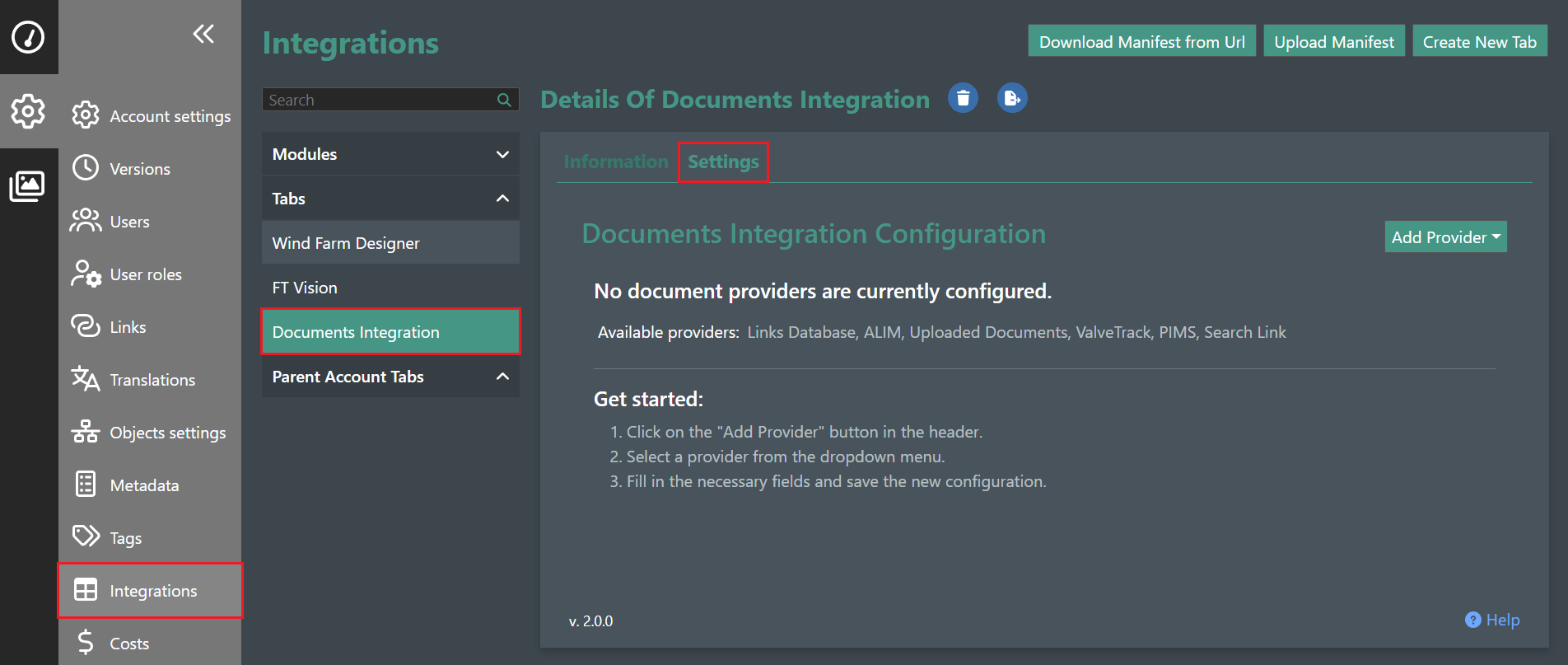
If no provider configurations are currently saved, the above page will be visible.
The available providers for the environment will be listed in the Available providers section.
If no providers are enabled for the environment, the following screen will be shown.
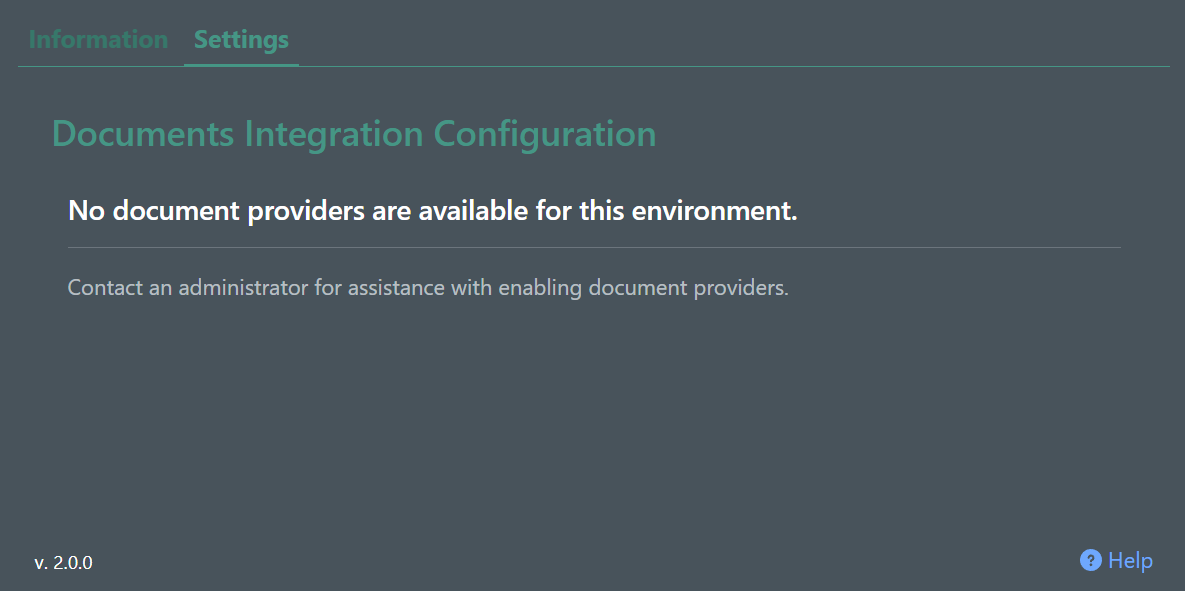
In this case, an administrator must be contacted to enable the required document providers.
New provider configurations can be added by clicking the Add Provider button at the top right, and selecting the document provider from the dropdown list.
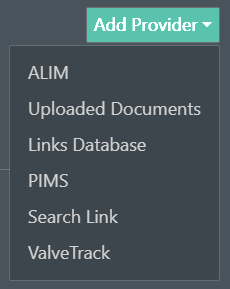
The following document providers can be configured multiple times, each in its own tab:
- ALIM
- PIMS
- Search Link
There is no limit on the number of configured tabs.
Provider Configurations
Each provider configuration has the following action buttons at the bottom:
 saves the configuration.
 resets the fields and removes the configuration as a document source.
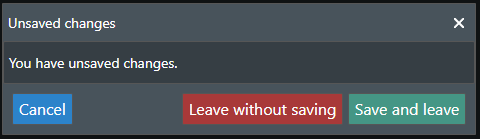
If a configuration has unsaved changes and a different tab is selected to be loaded, the following popup will appear:
The following sections describe in more detail how to set up and use each of the provider tabs.
Links Database
The Links Database provider enables a user to create a table of links to documents related to an object in FieldTwin. For example, these could be links to Microsoft Office 365 files.
Select the Links Database tab in the Settings page.
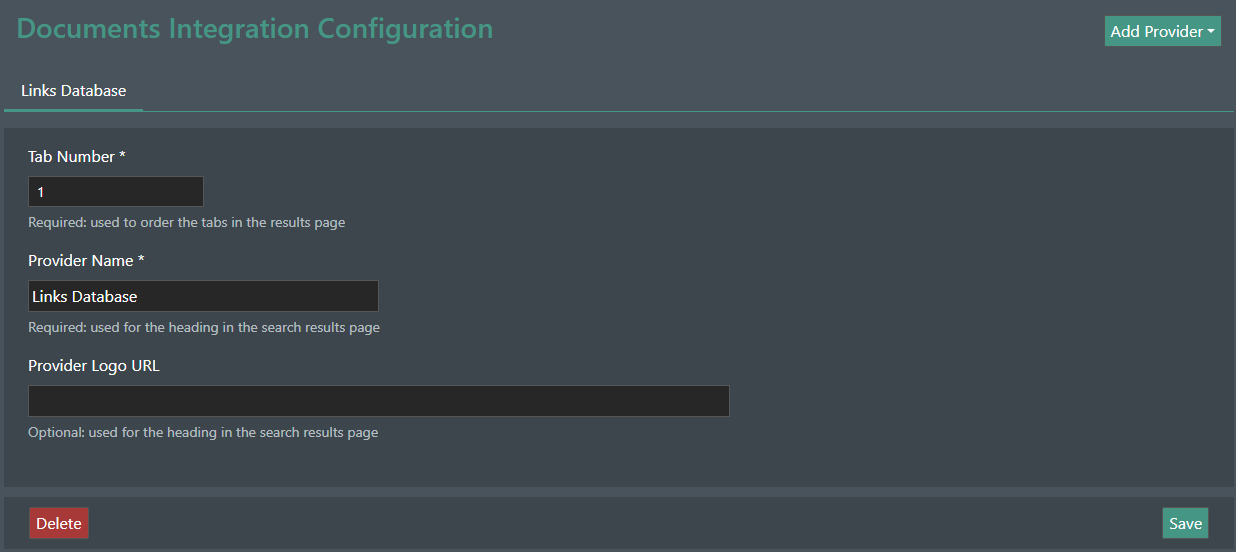
The configuration provides the following settings:
- Tab Number: (Required) is used to define the order of tabs on the results page. If left blank, the tab will be placed after any numbered tabs.
- Provider Name: (Required) this sets the name that is displayed in the tab header on the results page.
- Provider Logo URL: (Optional) this can be used to add an icon image in the tab header on the results page.
Search Link
Search Link tabs provide a clickable link that launches an external document management system, triggering a search for documents related to the currently selected FieldTwin object.
Select the Search Link tab in the Settings page.
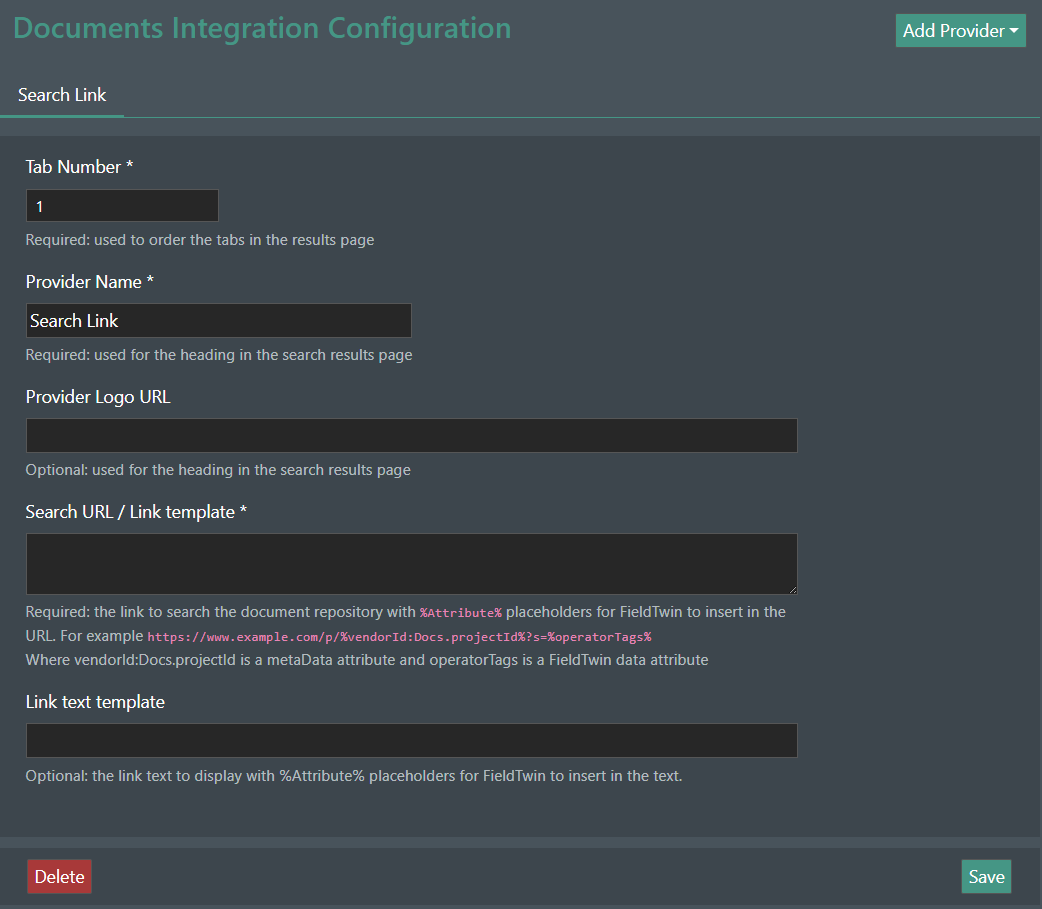
The configuration provides the following settings:
- Tab Number: (Required) is used to define the order of tabs on the results page. If left blank, the tab will be placed after any numbered tabs.
- Provider Name: (Required) this sets the name that is displayed in the tab header on the results page.
- Provider Logo URL: (Optional) this can be used to add an icon image in the tab header on the results page.
- Search URL / Link Template: (Required) this defines the search link to the external system. This should include placeholders for the FieldTwin attribute(s) that will be used for the search. These should be enclosed in
%characters, for example%operatorTags% - Link Text Template: (Optional) the link text to display with
%Attribute%placeholders for FieldTwin to insert in the text. This enables the user to define the text string that will be displayed for the link.
The Search Link includes a reference to the selected FieldTwin object such as its unique ID, a tag number, or a metadata value that can identify it.
Multiple Search Link tabs can be configured at once from the Add Provider button at the top.
That way one Search Link tab could be configured to search Microsoft Sharepoint, and a second Search Link tab could be configured for searching a Kongsberg Kognitwin project repository.
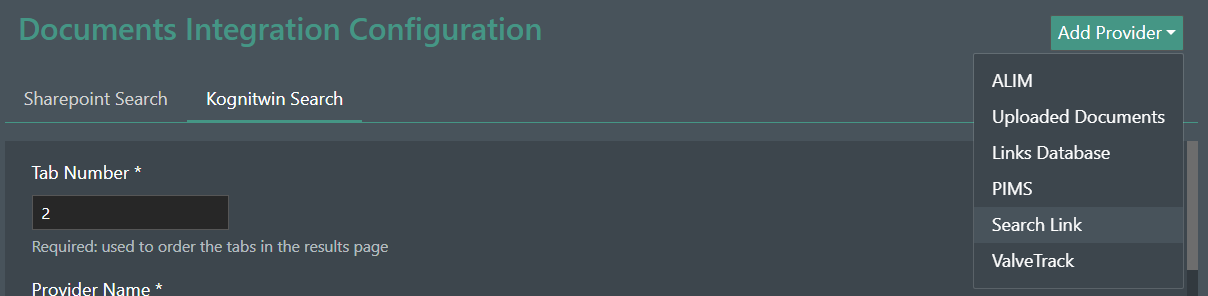
The names of the tabs will usually be set as the name of the external application.
Uploaded Documents
FieldTwin Design provides a facility to upload document files into FieldTwin itself. This facility can be useful when a full-blown document management system is not required, or for sharing selected documents between collaborators who do not all have access to a private repository.
Select the Uploaded Documents provider.
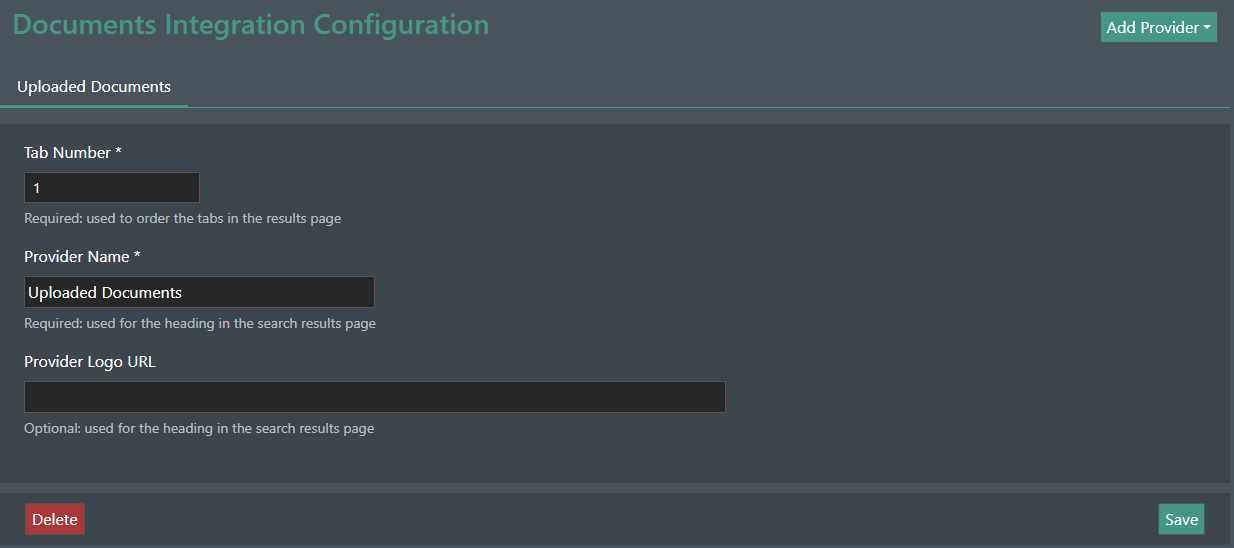
The configuration provides the following settings:
- Tab Number: (Required) is used to define the order of tabs on the results page. If left blank, the tab will be placed after any numbered tabs.
- Provider Name: (Required) this sets the name that is displayed in the tab header on the results page.
- Provider Logo URL: (Optional) this can be used to add an icon image in the tab header on the results page.
Omega365 PIMS
The Omega365 Project Information Management System (PIMS) API provider enables the user to select an object in FieldTwin and display a table of PIMS documents associated with the selected item.
Select the PIMS provider.
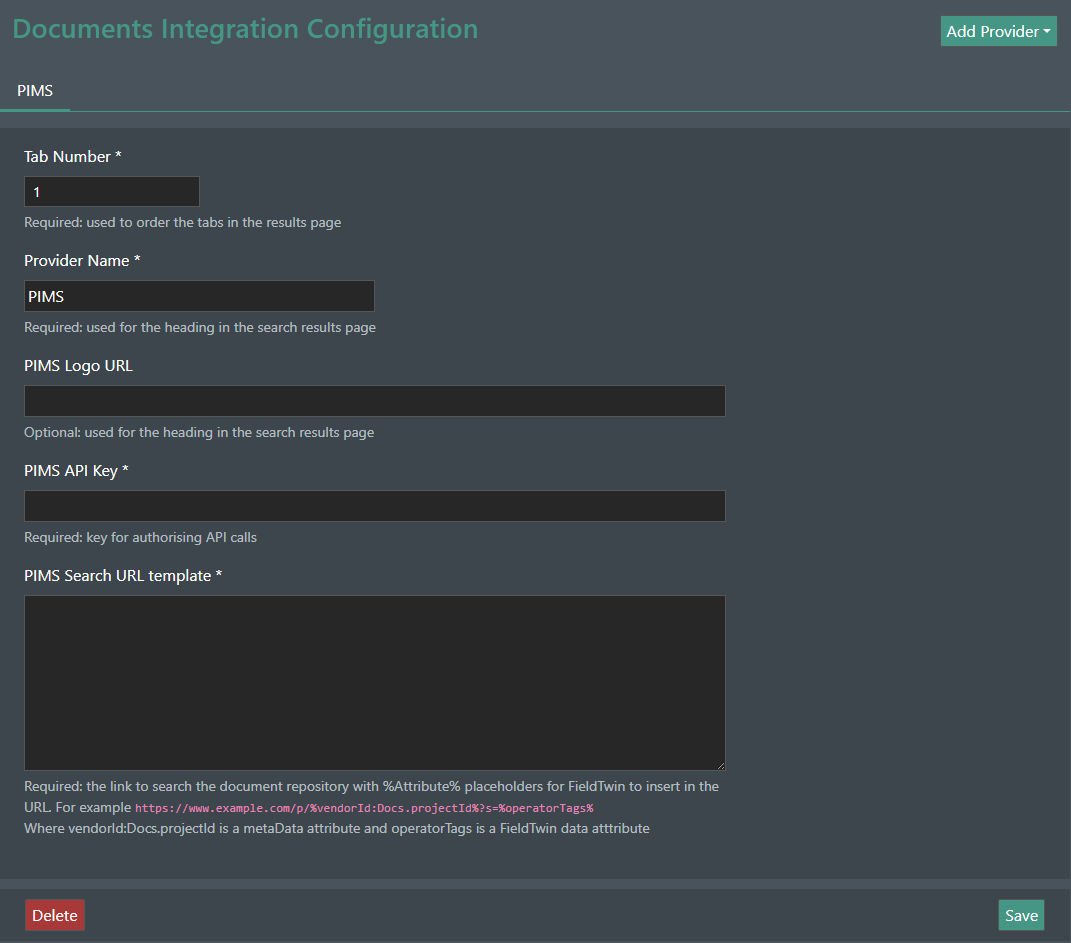
The configuration provides the following settings:
- Tab Number: (Required) is used to define the order of tabs on the results page. If left blank, the tab will be placed after any numbered tabs.
- Provider Name: (Required) this sets the name that is displayed in the tab header on the results page.
- PIMS Logo URL: (Optional) this can be used to add an icon image in the tab header on the results page.
- PIMS API Key: (Required) the PIMS API requires an API key to authorise access.
- PIMS Search URL Template: (Required) This defines the PIMS API URL for querying the PIMS system. This should include placeholders for the FieldTwin attribute(s) that will be used for the search. These should be enclosed in
%characters, for example%operatorTags%.
Note: The PIMS API Key and details about how to format the API search URL should be requested from Omega365.
A typical query URL template is shown below.
https://company.pimshosting.com/fieldview/tagdocs?filter={
  and: [
    { equals: { left: { field: "Domain" }, right: "Domain-Name" } },
   { equals: { left: { field: "TagNo" }, right: "%operatorTags%"  } }
]
}
The bracketing and quotation characters must be correct otherwise the API will return an error.
Multiple PIMS tabs can be configured at once from the Add Provider button allowing different PIMS templates to be invoked.
Bentley ALIM
The Bentley AssetWise Asset Lifecycle Information Management System (ALIM) API provider enables the user to select an object in FieldTwin and display tables of ALIM records associated with the selected item.
Select the ALIM provider.
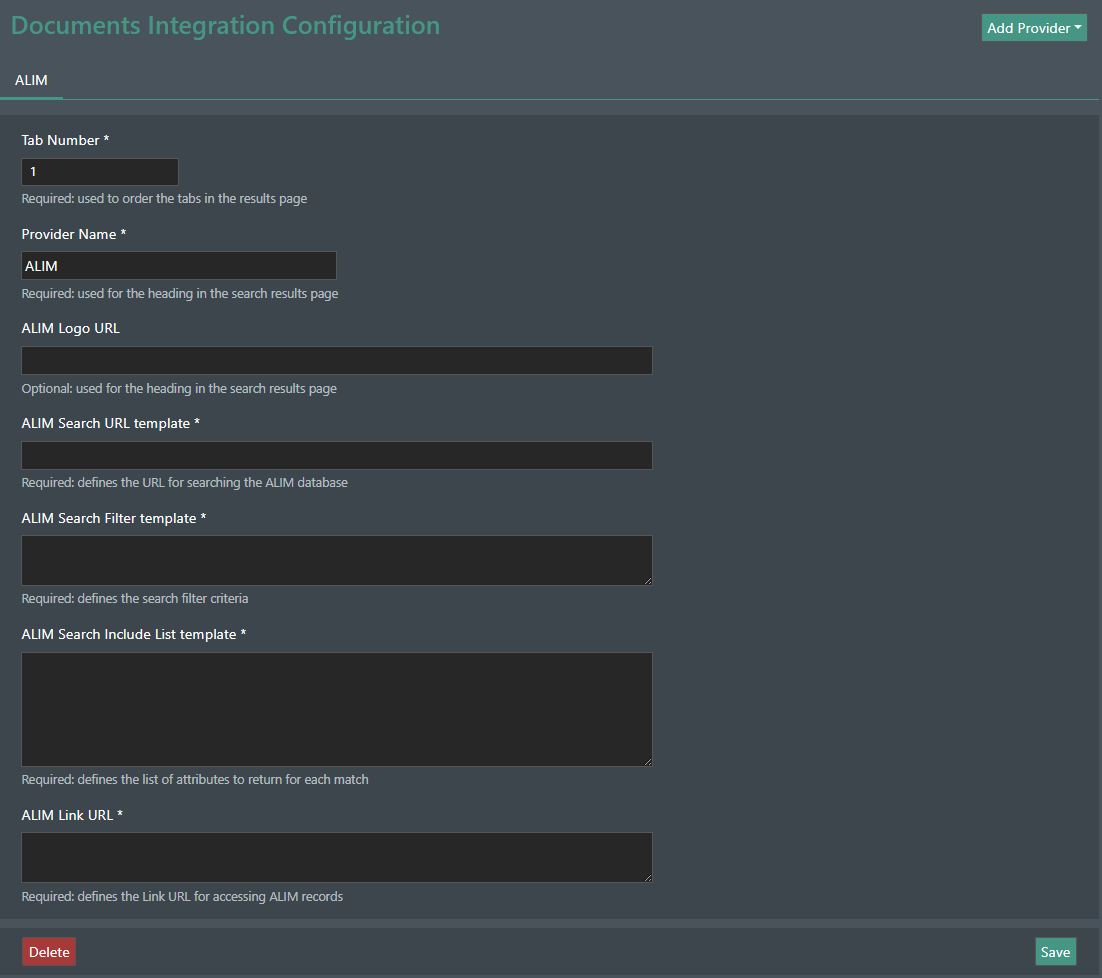
The configuration provides the following settings:
- Tab Number: (Required) is used to define the order of tabs on the results page. If left blank, the tab will be placed after any numbered tabs.
- Provider Name: (Required) this sets the name that is displayed in the tab header on the results page.
- ALIM Logo URL: (Optional) this can be used to add an icon image in the tab header on the results page.
- ALIM Search URL Template: (Required) This defines the base URL for querying the ALIM system.
- ALIM Search Filter Template: (Required) This defines the Filter for querying the ALIM system. This should include placeholders for the FieldTwin attribute(s) that will be used for the search. These should be enclosed in
%characters, for example%operatorTags%. - ALIM Search Include List Template: (Required) This defines the list of data items that should be returned from the search query.
- ALIM Link URL: (Required) This defines the ALIM link URL for opening ALIM records in a browser tab.
Note: Details about how to format the API search URLs, Context code, Filter and Include List should be requested from Bentley.
The ALIM configuration settings page is quite complex, but it provides flexibility to configure any API request (using the URL, Filter and Include List settings) to perform any required ALIM search query and define the data attributes to be displayed in the results tables.
More details about the ALIM API can be found here.
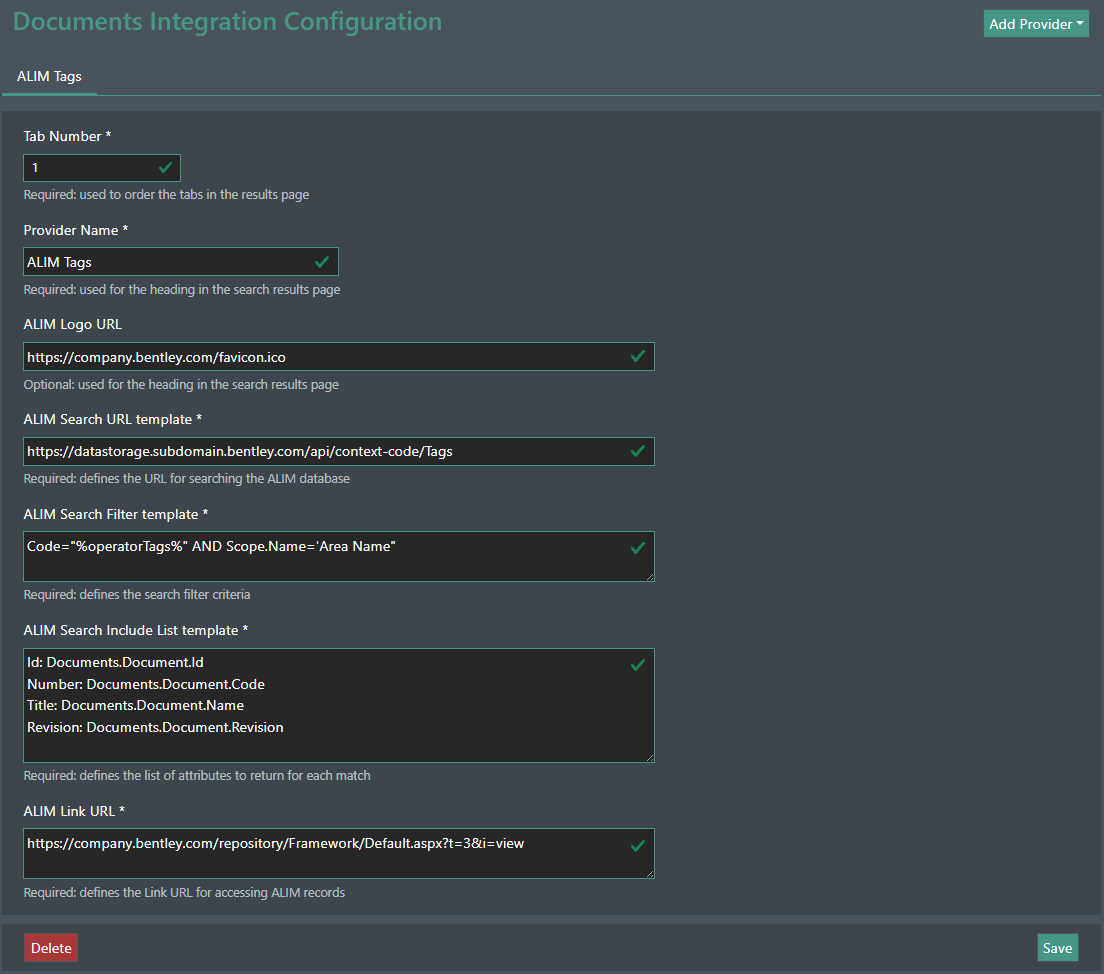
The example above shows the configuration for an ALIM API Search for documents matching an object tag.
- The Search URL provides a context code which defines the company repository (eg. Dev, QA, Prod); and specifies a search for matching 'tags'
- The Filter template defines the database query to be invoked using parameters from the selected FieldTwin object
- The Include List defines which attributes of the matching records should be displayed in the results. There can be any reasonable number of attributes, and the results table will create columns for each attribute. The Id attribute must be provided first; this is used to create the clickable link to open ALIM records in a browser tab.
Multiple ALIM tabs can be configured at once from the Add Provider button allowing different ALIM queries to be invoked.
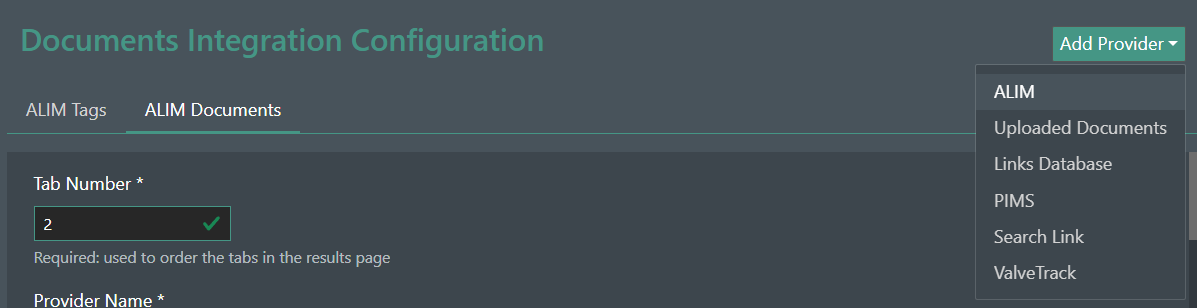
ValveTrack
The 4Subsea ValveTrack API provider enables the user to select an object in FieldTwin and display tables of ValveTrack records associated with the selected item's valves.
Select the ValveTrack provider.
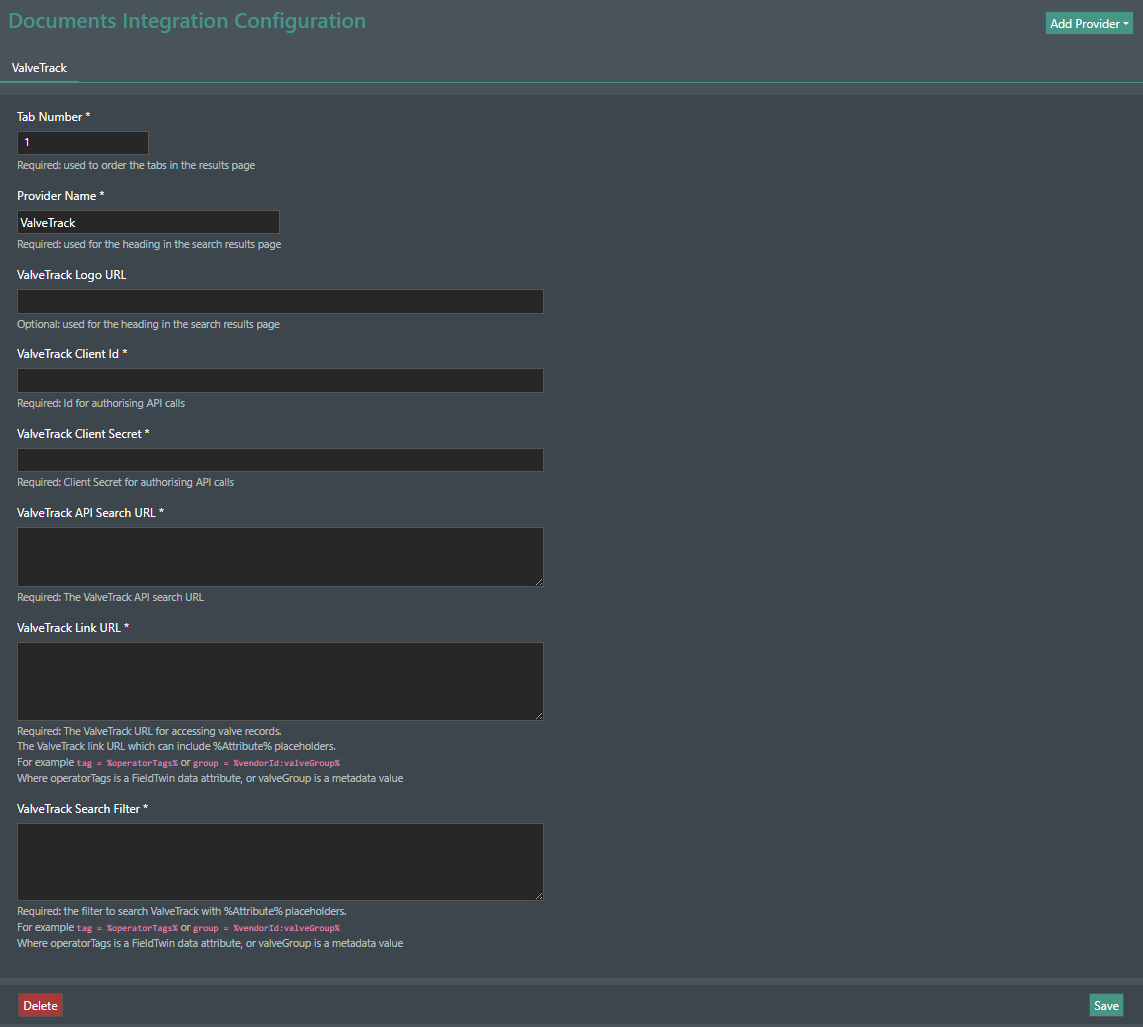
The configuration provides the following settings:
- Tab Number: (Required) is used to define the order of tabs on the results page. If left blank, the tab will be placed after any numbered tabs.
- Provider Name: (Required) this sets the name that is displayed in the tab header on the results page.
- ValveTrack Logo URL: (Optional) this can be used to add an icon image in the tab header on the results page.
- ValveTrack Client Id: (Required) this is the client identity string that is required for authorizing ValveTrack API operations.
- ValveTrack Client Secret: (Required) this is the client secret string that is required for authorizing ValveTrack API operations.
- ValveTrack API Search URL: (Required) this is the URL address that is required for accessing ValveTrack API valve status information. The URL includes a Field Id defined by 4Subsea for the specific operational field.
- ValveTrack Link URL: (Required) this is the URL address providing a link to the ValveTrack system to access valve details for a selected valve. The URL includes a Field Id defined by 4Subsea for the operational field.
- ValveTrack Search Filter: (Required) this defines a filter for mapping FieldTwin assets to ValveTrack records.
<valvetrack attribute> = <fieldtwin attribute>
For example
group = %operatorTags%Note: The Client Secret and ValveTrack Client Id should be requested from 4Subsea.
The filter expression includes FieldTwin attribute parameters enclosed in % %. This defines which FieldTwin object attribute is used to match to ValveTrack entries.
The parameter can either be a defined attribute such as %operatorTags% as shown, or can be a metadata value, for example, %vendorId:ValveTrackGroup% .
When FieldTwin invokes the ValveTrack API request, the parameters enclosed in % % are replaced with the actual value(s) for the currently selected object. The list of valves from ValveTrack is filtered to list those matching the FieldTwin parameter.
Using the Integration
The Documents User integration can be accessed through FieldTwin Designer.
To do so, click on "Layout", then "Documents Integration" or however you have named the integration in the admin part.
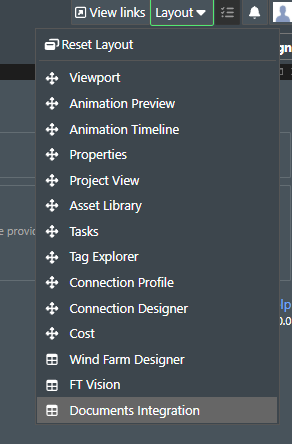
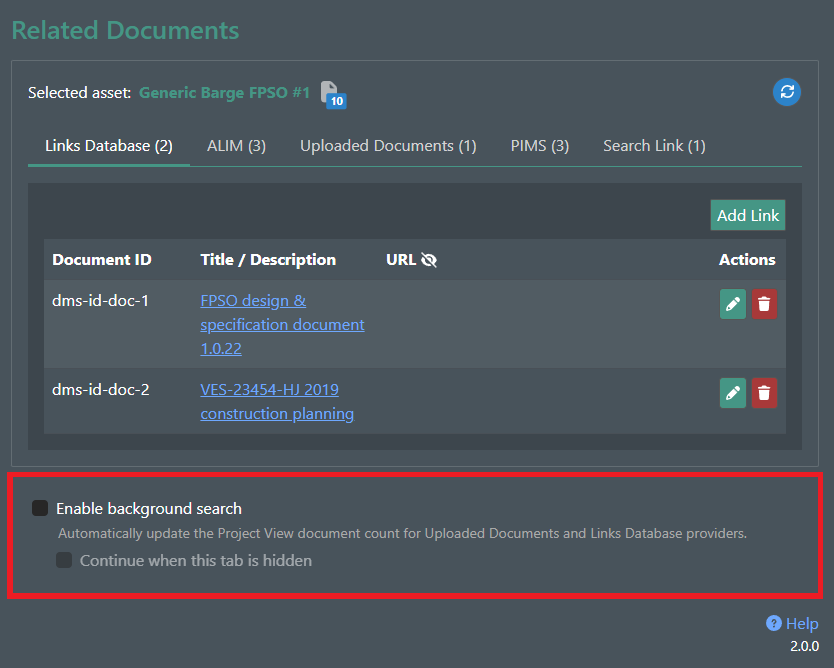
This is how the integration looks like when initially loaded.
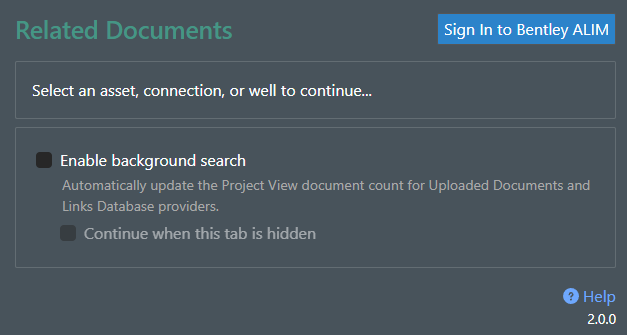
The initial view of the integration contains a few key actions and settings.
Starting from the top, the  action is only visible if ALIM is configured in the Documents Integration. Since the user needs to sign in to Bentley to authorise access to the ALIM API, clicking the button will open a popup window with a log in form. It is only necessary to sign in once at the beginning of a session.
Note: The browser security settings may need to be changed to allow pop-up windows for the sign-in to work correctly.
The bottom section contains settings for the Background Search Functionality. This feature, when enabled, allows the integration to update document counts in the Project View automatically.
Performing a Search and Viewing Results
Note: The tab names can be set by an administrator and may appear differently from the examples.
A Document search is triggered by clicking on an asset, connection, well or well bore in FieldTwin Design.
The integration automatically performs a search for related documents and shows the results from each document provider in adjacent tabs.
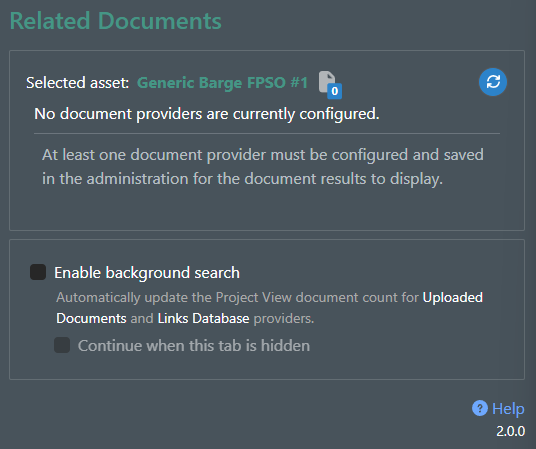
If no providers are configured in the administration the following message will be shown:
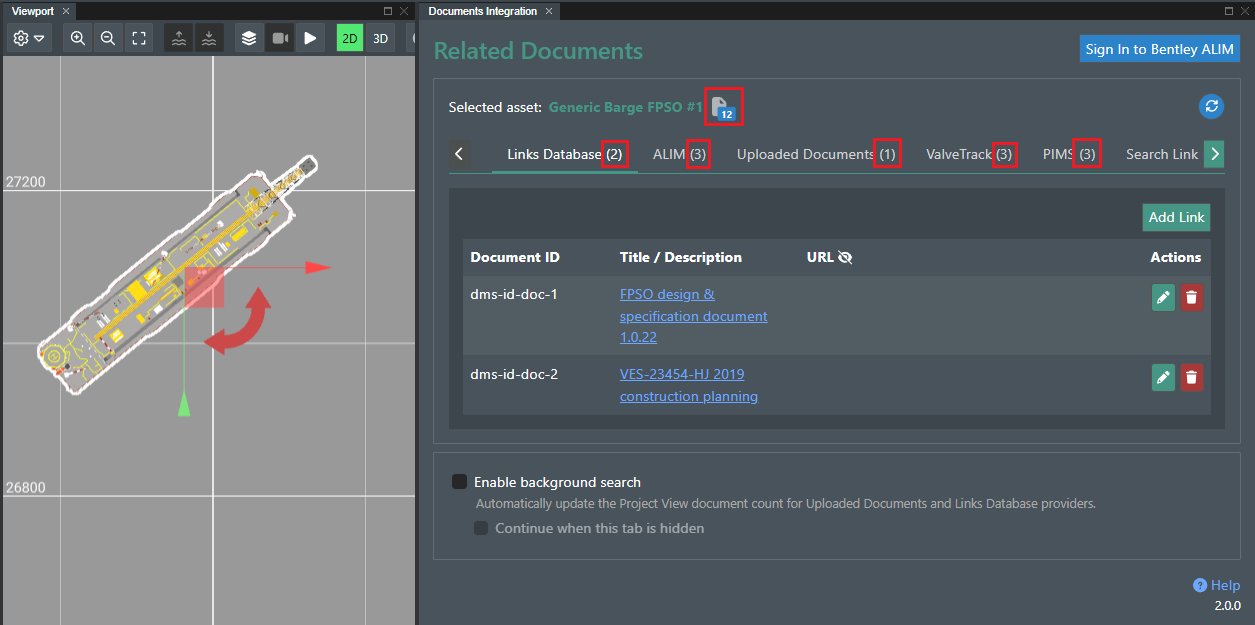
If documents are found for the selected object, their number will be shown next to the name of each provider tab. The total number of documents will also be shown on the right of the selected object's name.
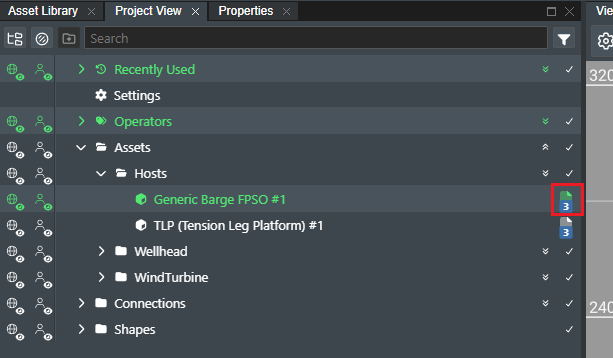
In addition, the number of documents from the Links Database and Uploaded Documents providers, will be shown next to the selected object's name in the Project View.
On the far right of the selected object's name, this action button is visible, allowing the user to manually check for new documents related to the selected object.

Providers Usage
The results for all providers in the data tables are able to be sorted by clicking on the column header:
 sort results by column ascending
 sort results by column descending
The following sections describe how to interact with the different types of document source providers that can be configured.
Links Database
If the Links Database tab is configured, it enables the user to create a table of links to documents related to an object in FieldTwin. For example, these could be links to Microsoft Office 365 files.
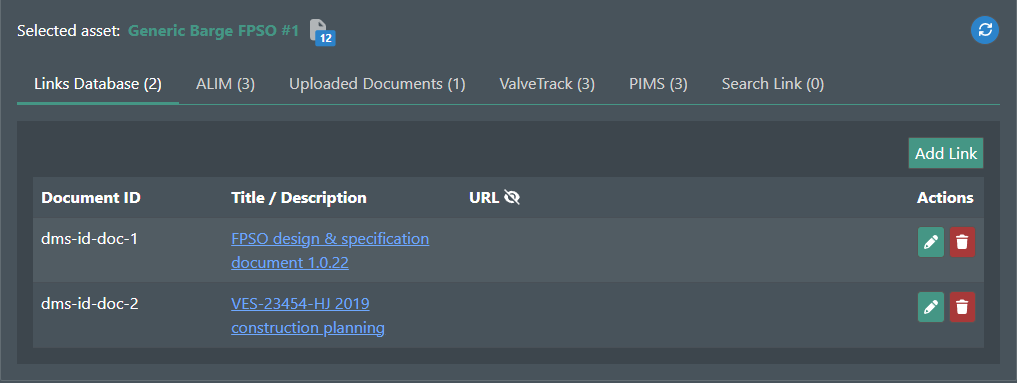
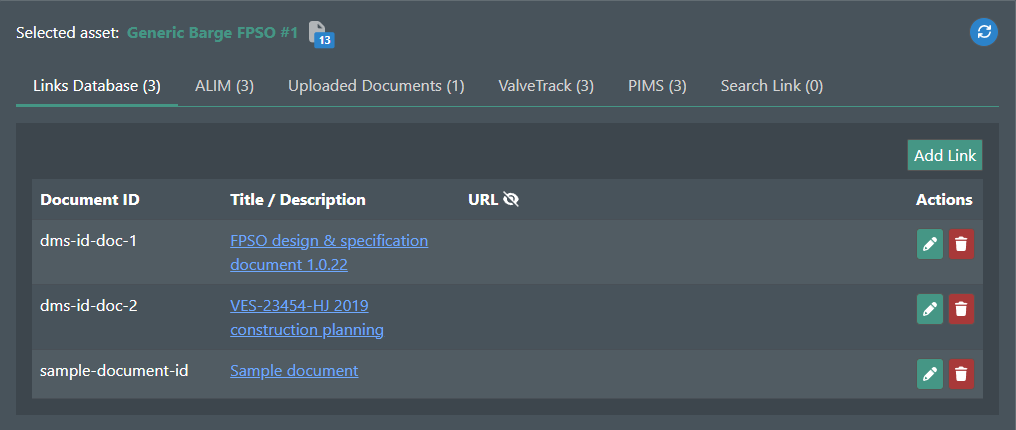
The table has the following columns:
-
Document ID: An ID or reference for the document. The reference value can be anything that is meaningful to your organization's documentation structure or process. It is only used for display.
-
Title/Description: The title or a short description of the document as you want it to appear in the search results. Clicking on the title of a document will open the URL to the document in a new browser window.
-
URL: The link via which the document can be accessed. Sorting is not available for this column, due to the show/hide privacy functionality.
Each row in the table has the following actions available:
 allows any of the fields for the entry to be updated.
 deletes the entry from the list. Deleting a link does not remove the document from the other application.
A new entry can be added by clicking the  button. This will display a new popup window where the details of the new link can be entered.
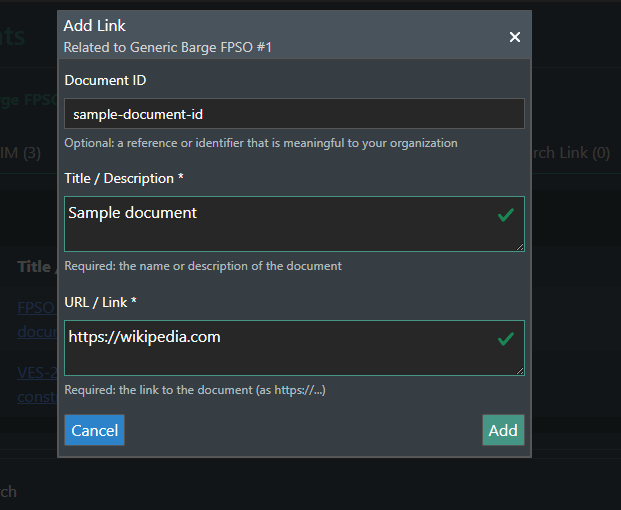
Once the details are set, clicking the Add button will save the configuration and the new link will be visible in the table.
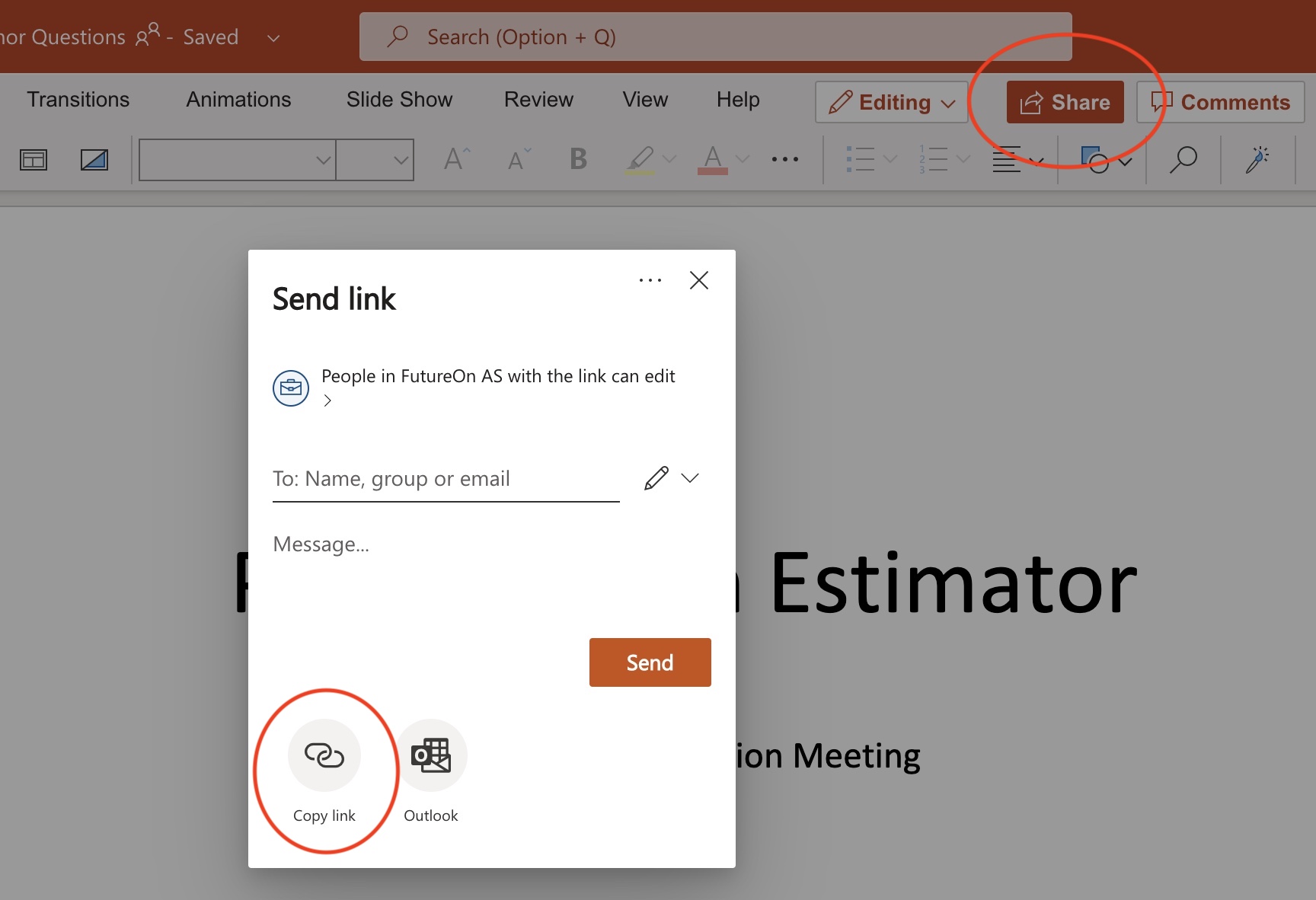
Linking to an Office 365 document (example)
The document must have its own unique web address (URL, hyperlink, or link). In some applications you can copy this from the address bar in your web browser, but many applications provide a function for copying the link to your clipboard. For example, in an Office 365 document, click Share and then Copy link:
With this done, switch back to FieldTwin Design and click on an asset, connection, well, or layer.
Once the object is selected, in the Database Links tab click the button and fill in the Document ID and Title / Description fields.
The copied link from Office 365 must be placed in the URL / LINK field.
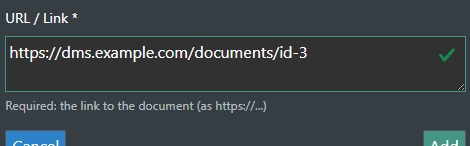
After clicking the Add button, the link to the Office 365 document will be created and visible in the table.
Search Link
If the Search Link tab is configured, it will provide a clickable link to search the external system. The example below visualises the use of the Operator tags attribute value of the selected object.
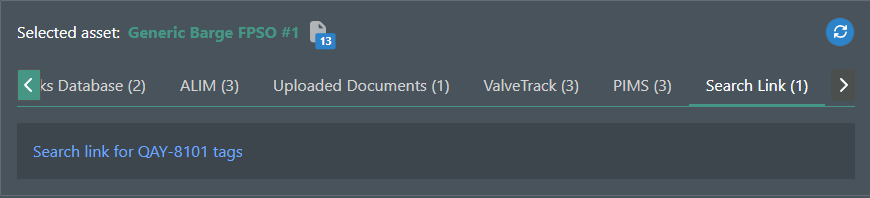
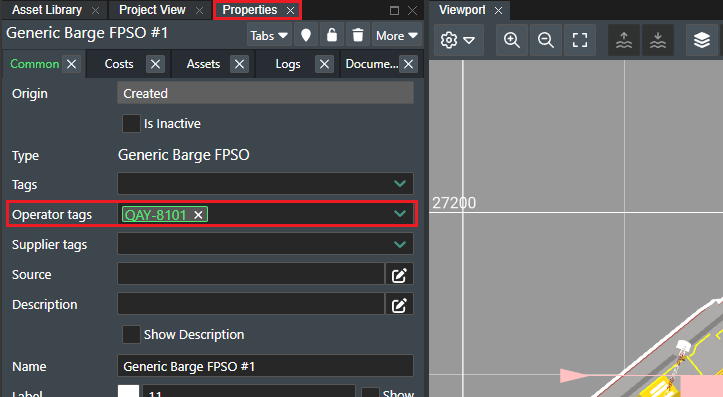
The visible link is generated using the attribute added to the Operator Tags property of the selected object. Clicking on the link will open a new browser window.
Note: You may be asked to log in to the other system before the search runs.
Uploaded Documents
If the Uploaded Documents tab is configured, it will allow quick access to the files/documents uploaded for the selected object.
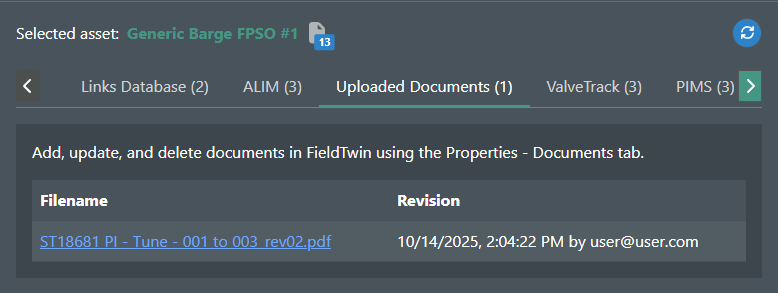
The table has the following columns:
-
Filename: The name of the uploaded file. The file can be opened for preview by clicking the name from the table.
-
Revision: Contains information when the file has been altered, and by which user.
The file itself can be viewed from the Properties of the selected object, under the Documents tab

Omega365 PIMS
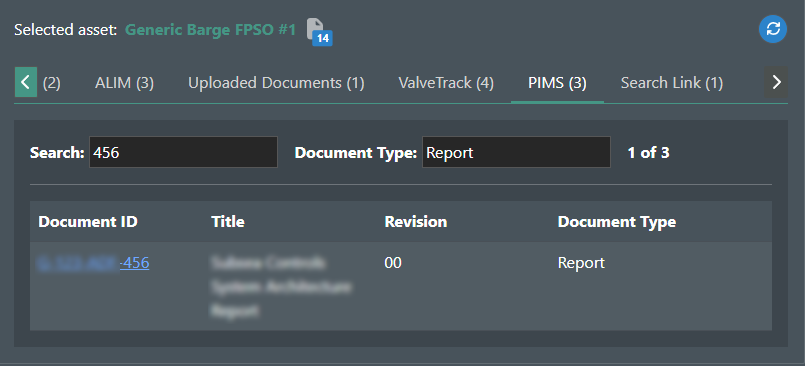
If the Omega365 PIMS tab is configured, upon an object selection in FieldTwin, the integration will trigger a query to the PIMS API and a table of results will be displayed.
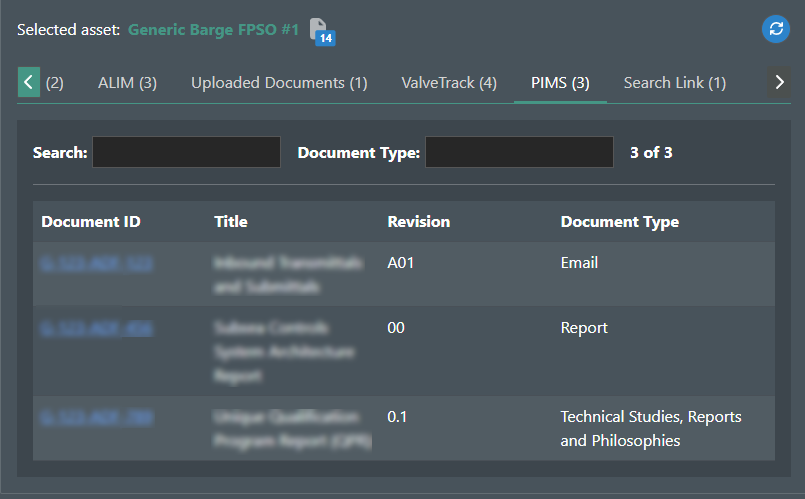
The table has the following columns:
- Document ID: The ID of the listed document. Clicking the ID will open the item inside PIMS in a new browser tab. It will be necessary to be logged in to PIMS to view the document itself.
- Title: The title of the listed document.
- Revision: The revision index.
- Document Type: The type of the document.
The results listed in the table can be filtered using the two input fields at the top:
- Search: Returns only the documents which contain the specified input either in the Document ID or the Title columns.
- Document Type: Shows only the documents which have the specified Document Type.
Bentley ALIM
If the ALIM tab is configured, the user must be signed in to Bentley to authorise access to the ALIM API. This can be done by clicking the button.
Similarly to the Omega365 PIMS tab, when an object is selected in FieldTwin, the integration will trigger each of the configured ALIM queries, and will display the results in a table in each ALIM tab.
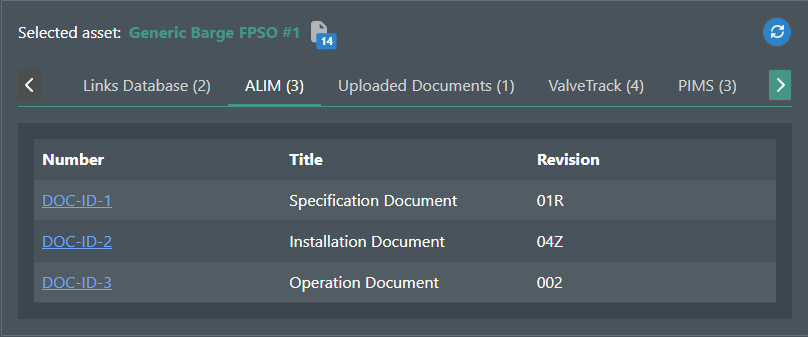
The table columns, as well as the document values for each column are defined by the template in the administration.
The document structure visible in the table above is achieved by using the following template:
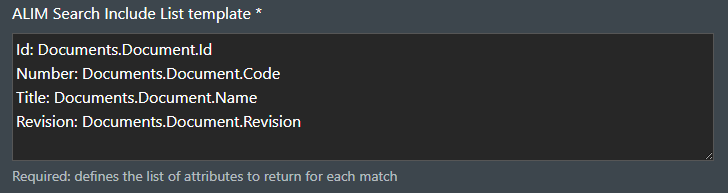
- Each row's Id within the table is assigned the value of the Document ID. This is used internally and is not visualised in a separate column.
- A Number column is defined, visualising the Document Code value.
- A Title column is defined, visualising the Document Name value.
- A Revision column is defined, visualising the Document Revision value.
ValveTrack
If ValveTrack tab is configured, similarly to the Omega365 PIMS and Bentley ALIM tabs, when an object is selected in FieldTwin, the ValveTrack API will be called, and a list of the results is displayed in a table.
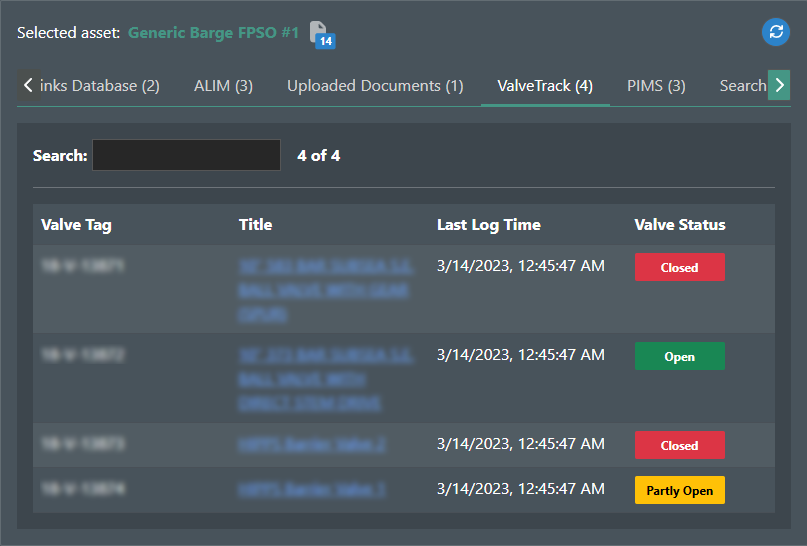
The table has the following columns:
- Valve Tag: The tag of the valve.
- Title: The name of the valve. Clicking the name will open the ValveTrack details page in a new browser tab. It will be necessary to be logged in to ValveTrack to view the details.
- Last Log Time: The timestamp of when the document was last logged.
- Valve Status: If available, the operational status of the valve.
The results listed in the table can be filtered using the input field at the top:
- Search: Returns only the documents which contain the specified input either in the Valve Tag or the Title columns.
Background Search Functionality
The Background search functionality can be enabled from the settings section, located at the bottom of every provider.
When enabled, the integration will respond to occasional requests from FieldTwin to update the document counts in the Project View. This typically occurs when the project is first loaded and when the multiple selection tool is used.
The Continue when this tab is hidden action allows the background search functionality to be performed even if the Documents Integration tab is hidden or out of focus. It's available only if Enable background search is active.
The functionality performs a search for every available object in the Designer, and tracks for new documents in the Links Database provider.
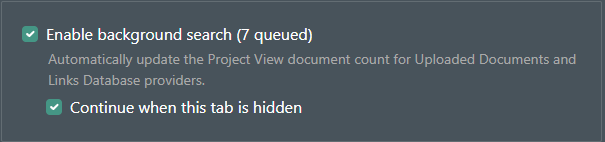
Note: Background searches do not block the normal use of the integration, and repeated searches for the same objects are ignored.