SLB FDPlan
The FDPlan™ agile field development planning solution accelerates the planning process by enabling data insights, collaboration, and agile evaluations. It empowers engineers, geologists, and project managers to explore alternatives, make better decisions, and deliver faster results, all within a single, integrated digital application. This integrations allows for data exchange between FDPlan and FieldTwin for a rapid visual data workflow.
Installation
The FDPLan Integration is deployed once per tenant and configured per account. Please contact FutureOn Customer Success to have it deployed to your tenant.
Add Integration to an Account
- Go to Admin in the instance.
- Select target account.
- Open Integrations pane (expand if hidden).
- Click Download Manifest from URL (top-right).
- Paste integration URL +
/manifest. - Example:
https://slb-fdp-integration-main.mytenant.fieldtwin.com/manifest - If creation fails → verify URL with FutureOn Customer Success.
➡️ Keep this tab open; open a new one for Delfi Setup.
Delfi Setup
Access required: FutureOn Delfi account.
Default to production app unless instructed otherwise.
Each account requires its own key pair.
- Go to Delfi portal.
- Select
fdplan-futureon-prod - App Key:
Note: Please contact your Customer Success representative to obtain - Open Clients tab.
- Add two clients: frontend (user login) + backend (service token).
⚠️ Backend credentials grant full access.
Frontend Client
- Add New Client
- Name: lowercase tenant name
- Type: User Authentication
- Profile: Browser-based application
- Redirect URI: Integration URL +
/auth - Example:
https://slb-fdp-integration-main.futureon-mytenant.fieldtwin.com/auth - Click Save
- Copy Client ID → used in Integration Configuration.
Backend Client
- Add New Client
- Name: lowercase instance name +
-backend - Type: Service Account
- Click Save
- Copy Client ID + Client Secret → used in Integration Configuration.
⚠️ Store securely.
Integration Configuration
- Go to Admin of the instance.
- Select target account.
- Open Account Settings.
- In API, click Create API Token.
- Name:
FDPlan - Copy token → used as API Token
⚠️ Sensitive: Full account access. - Open Integrations → Settings.
- Fill in fields below:
- API Token
- Paste the token from step 4.
- Delfi Settings
- APP KEY:
Note: Please contact your Customer Success representative to obtain - API SERVER URL:
https://eu-api.delfi.slb.com(EU region) - DATA PARTITION: leave empty or set default.
- APP KEY:
- FDPlan Settings
- API SERVER:
https://prod-eu-services-fdplan.slbservice.com(EU region)
- API SERVER:
- Client Authentication
- SERVER URL:
https://csi.slb.com/v2 - CLIENT ID: from Frontend Client
- SERVER URL:
- Backend Authentication
- CLIENT ID: from Backend Client
- CLIENT SECRET: from Backend Client
⚠️ Store securely.
- Click Save (top-right).
⚠️ Don’t leave page without saving.
Return to Installation if you need to check deployment.
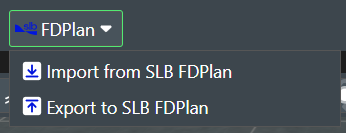
SLB FDP Import and Export
This section describes the data import and export processes between FieldTwin and SLB FDPlan, detailing the data structures, mapping logic, and metadata usage.
Import (SLB FDPlan to FieldTwin)
The import process involves fetching a Field Layout (Schema V2) JSON object from SLB FDPlan and converting it into FieldTwin entities. This ensures that the field architecture defined in FDPlan is accurately represented in FieldTwin.
User Inputs
Before triggering the import from SLB FDPlan, the user must configure the following in the integration UI:
- Partition: The SLB partition/environment used by the integration.
- Studies: The study to import from.
- Scenario: The scenario inside the selected study.
Then the user clicks Import to start the process.
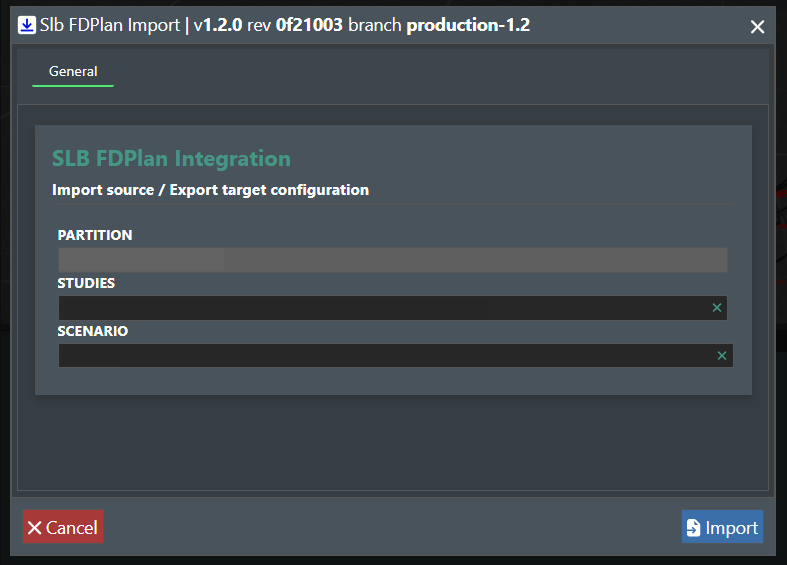
Important behavior for end users:
- Import is available only when a Scenario is selected.
- Import is disabled if the FieldTwin subproject is locked.
What We Import
We import a normalized Field Layout structure. The key components are:
- Facilities: Surface or subsea structures (e.g., Platforms, Manifolds, Templates).
- Wells: Well data including wellheads and associated trajectories.
- Connections: Pipelines, umbilicals, or other structural connections between facilities and wells.
- Surfaces: Seabed bathymetry and reservoir horizons (Earth Vision Grids).
How We Import It
The import logic processes the data in several steps:
Step 1: Normalization
The incoming data is normalized to simplify processing:
- Geometry: Trajectory path points are reduced to
x, y, zcoordinates. Complex drilling data found in the source (likemd,tvd,inclination,azimuth) is commonly ignored for the visual geometry construction in FieldTwin, though it may be retained in metadata tags. - Structure: The data is flattened into
wells,connections, andfacilities.
Step 2: Idempotency & Entity Management
The system uses Import Parameters (metadata) to track existing resources. This ensures the import is idempotent — it updates existing entities rather than creating duplicates.
| FDPlan Entity | FieldTwin Entity | Matching Metadata Key | Notes |
|---|---|---|---|
| Facility | Staged Asset | fdp::drillcenter_id |
Often mapped to Drill Center Templates or generic TBEs. |
| Well | Well | fdp::trajectory_id |
Wellbores are created from trajectories. |
| Connection | Connection | fdp::connection_id |
Path is mapped to intermediary points. |
Step 3: Geometry Updates
If an entity is matched via its metadata ID:
- Its Coordinates (location) are updated.
- Its Path (for wells and connections) is replaced with the new geometry from SLB.
Step 4: Bathymetry & Seabed Import
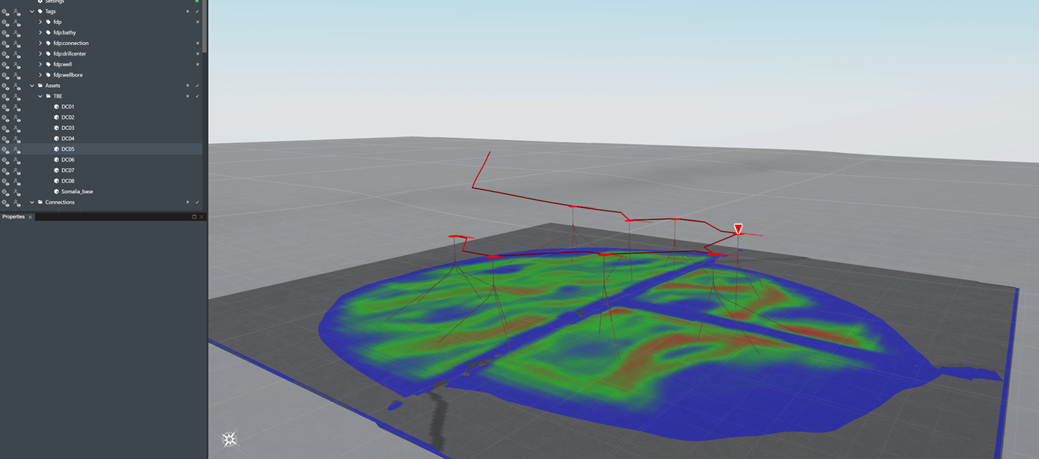
Instead of generating synthetic bathymetry, the integration directly imports seabed and reservoir surfaces from SLB FDPlan.
- Earth Vision Grids: Imported as bathymetry layers.
- Reservoir Zone Maps: Includes
top_completion_surface_mapandbottom_completion_surface_map, which are uploaded as surface layers. - Gradients: Quality maps (e.g.,
quality_map,base_quality_map) are imported as gradient layers on top of the surfaces.
Note: When creating Facility assets (Staged Assets), the system explicitly uses the TBE Asset (Drill Center Template) to ensure correct representation and behavior within FieldTwin.
Export (FieldTwin to SLB FDPlan)
The export process converts FieldTwin subproject data into the SLB Field Layout V2 schema format. This section details user actions, mapping logic, and data structures.
User Inputs
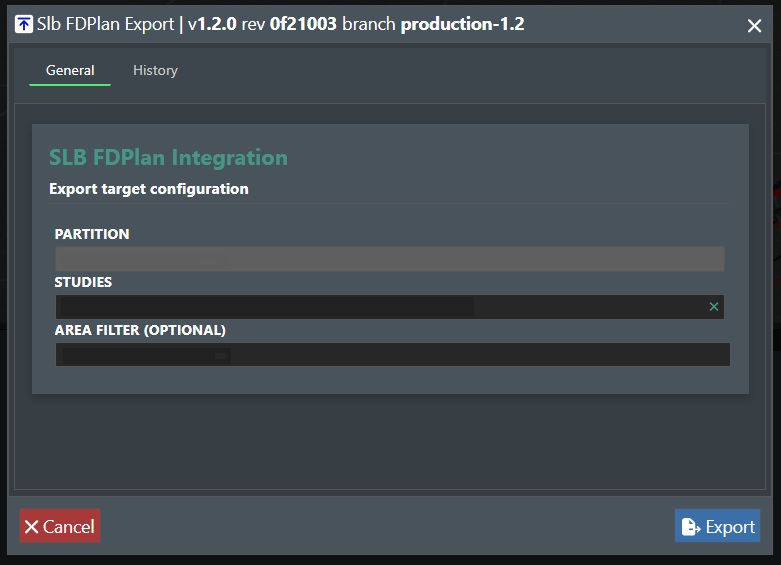
Before triggering the export from FieldTwin, the user must configure the following in the integration UI:
- Select Partition: Choose the target environment/partition in SLB FDPlan.
- Select Study: Choose the specific study where the data should be exported.
- Select Shape (Optional): Filter the export geographically by selecting a shape (Polygon or Circle) defined in the FieldTwin subproject. Only assets within this shape will be included.
Post-Export Action
After the export job is triggered from FieldTwin, there is a subsequent processing step required on the SLB FDPlan side to finalize the integration.
(Details to be completed by SLB admin)
Project Metadata
| SLB Field | FieldTwin Source | Fallback / Default |
|---|---|---|
name |
Subproject Name | Field Layout Export |
fieldName |
Subproject Name | Field Layout Export |
crs |
Project Settings (CRS) |
EPSG:4326 |
layoutType |
(Hardcoded) | development |
| (Measurement Units) | Project Settings (coordinateUnits) |
'm' |
Facility (Staged Asset) Export
Staged Assets are exported as Facilities only if they have specific metadata defined.
| SLB Property | FieldTwin Property | Notes |
|---|---|---|
id |
Staged Asset ID | |
name |
stagedAsset.name OR stagedAsset.asset.name |
|
status |
stagedAsset.status |
Mapped to SLB status vocabulary. |
type |
Metadata Key: Slb.FdPlan.FacilityType |
CRITICAL: If this metadata is missing, the asset is NOT exported. |
capacity |
Metadata Key: NumberOfFreeSlots family |
Checks keys like FutureOnMetadata:NumberOfFreeSlots or Slb.FdPlan.FreeSlots. |
coordinates |
stagedAsset.initialState.{x, y, z} |
z defaults to 0 if missing. |
network_type |
Derived from stagedAsset.asset.category |
e.g., producer -> oil production. |
Well Export
Wells are exported with their associated Wellbores (trajectories).
| SLB Property | FieldTwin Property | Notes |
|---|---|---|
id |
Well ID | |
name |
well.name |
|
status |
well.status |
Mapped to SLB status vocabulary. |
type |
well.type |
Mapped to SLB well type. |
fluid_type |
well.fluidType |
Mapped (e.g., oil -> oil). |
wellhead |
well.{x, y, z} |
z defaults to 0. |
downstreamFacilityNodeId |
Calculated | Derived by tracing connections attached to the well. |
Trajectories (from Wellbores):
Each point in the trajectory path uses the following data:
| SLB Property | FieldTwin Source | Logic / Fallback |
|---|---|---|
x, y, z |
point.x, point.y, point.z |
Geometry coordinates. |
md |
point.md |
Defaults to abs(z) if missing. |
tvd |
abs(point.z) |
True Vertical Depth. |
inclination |
point.incl |
Defaults to 0. |
azimuth |
point.azimuth |
Defaults to 0. |
ns |
Calculated | North-South offset relative to start point. |
ew |
Calculated | East-West offset relative to start point. |
dls |
Calculated | Dogleg Severity based on incl, azimuth, and md changes. |
Connection Export
Connections are exported with topological information.
| SLB Property | FieldTwin Property | Notes |
|---|---|---|
id |
Connection ID | |
name |
connection.params.label OR connection.name |
Metadata Key: label in params. |
status |
connection.status |
Mapped to SLB status vocabulary. |
type |
connection.type |
Mapped (e.g., pipeline -> pipeline). |
length |
connection.length |
|
internalDiameter |
connection.params.internalDiameter |
Metadata Key: internalDiameter in params. |
sourceId |
connection.from |
ID of start node. |
targetId |
connection.to |
ID of end node. |
path |
connection.sampled |
Array of {x, y, z} points. |
sourceType / targetType |
Resource Type | For Facilities: Mapped from Asset Category (e.g. platform or subsea). For Wells: well. |
Metadata & Units
To ensure data integrity in SLB FDPlan, we explicitly attach OSDU-compliant measurement unit strings to values.
| Measurement | OSDU Unit String |
|---|---|
| Length / Depth (md, tvd, ns, ew) | osdu-openness:reference-data--UnitOfMeasure:<UNIT>: (e.g., ...:m:) |
| Angles (inclination, azimuth) | osdu-openness:reference-data--UnitOfMeasure:dega: |
Assigning FieldTwin data within FDPlan
Once a Field layout has been exported from FieldTwin, it is available in FDPlan and must be assigned to the appropriate scenario for further analysis
Apply the FieldTwin Field Layout
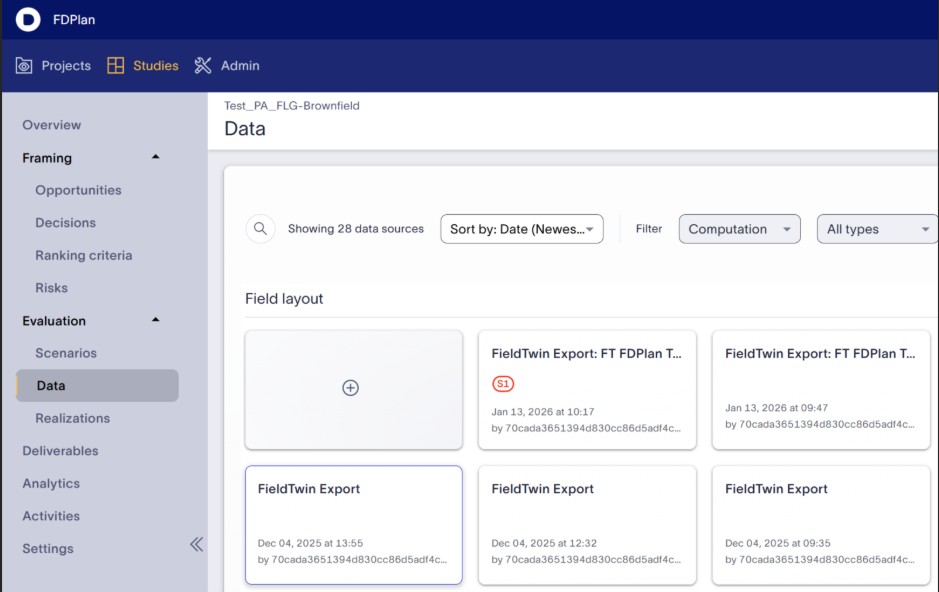
Ensure you are in the correct Study in FDPlan. Click "Data" from the Evaluation dropdown on the left hand side and select the FieldTwin Export that you want to use and then select "Assign to Scenario" on the right hand side of the pane.
Note!: The layouts are date stamped in order to assist.
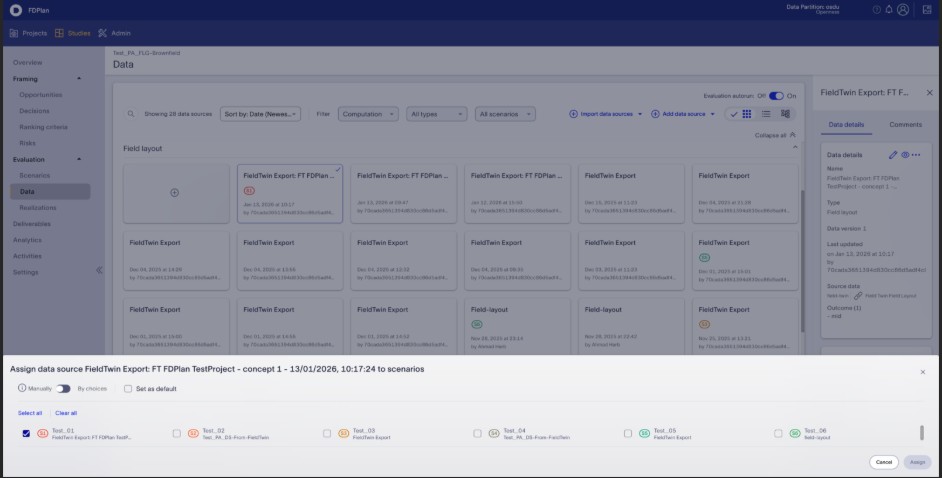
Load the Scenario in FDPlan
From here you can select one or more scenarios of interest and load that into the FDPlan project:
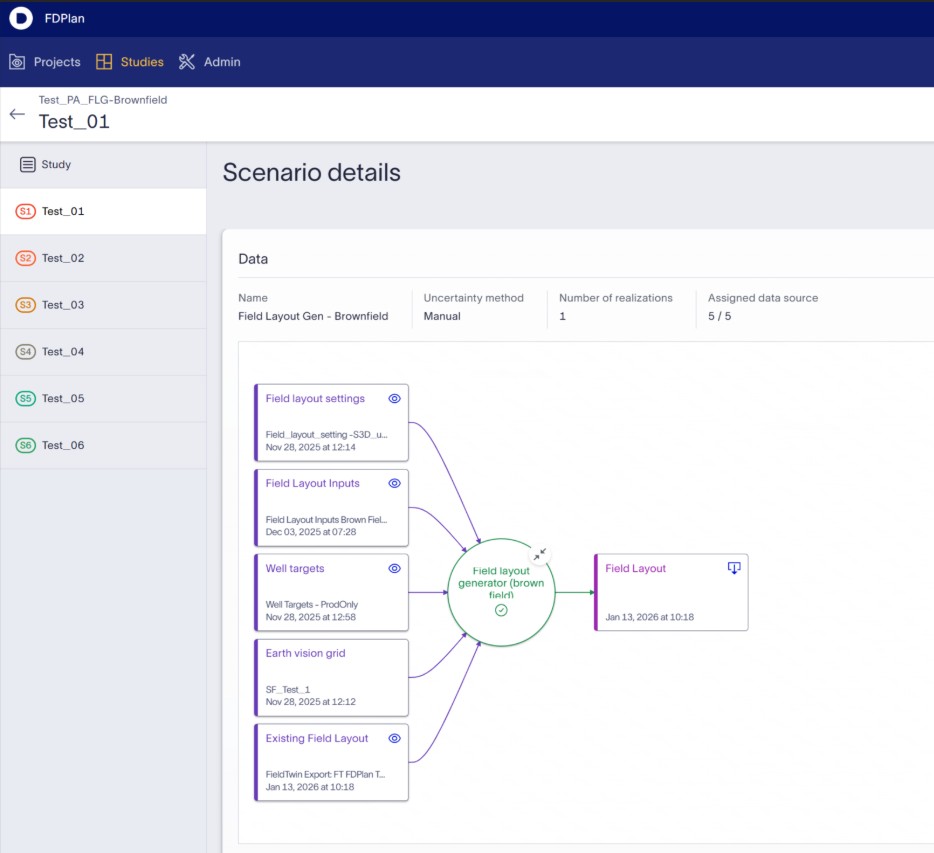
Scenario Details
Now that the FieldTwin export has been assigned, this data can be used as part of the next stages of the workflow in FDPlan. In the example below, this is being used as input for the existing field layout as part of a Brownfield generator which also has proposed additional well targets from other sources.
At this stage, FDPlan now has all the required inputs to run the Field Layout Generator capturing existing and proposed infrastruture for analysis
Vocabulary
Tenant
- Deployment of the core app mytenant.fieldtwin.com
- Common setups: QA and PROD (sometimes DEV).
URL
- Web address (Uniform Resource Locator).
- Example: https://google.com.
Delfi
- SLB’s Platform-as-a-Service.
- Hosts cloud-ready SLB + third-party apps.
- FutureOn uses a Delfi account for integrations.
- Requires Delfi access (or help from someone who has it).