Operations Search
After entering a search term and pressing Enter - FT Operate will search through any connected data source and display the results as shown in the results window below:
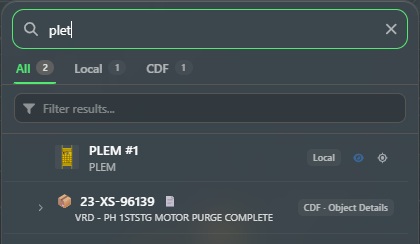
Search hits
As shown in the example above the search results then update with the number of hits for the connected data sources e.g.:
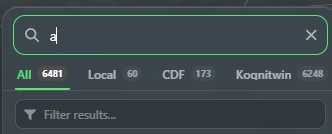
So here the search for "a" returns a total of 6481 hits for all data sources, 60 for the local project, 173 from CDF, and 6248 hits from KogniTwin.
Filter results
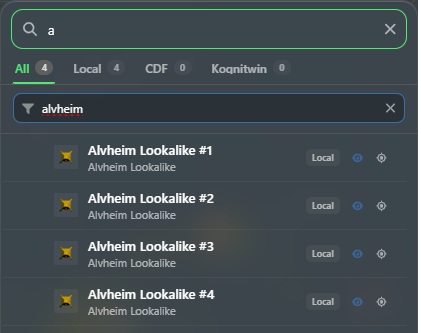
You can quickly narrow down the number of search results by using the Filter results as shown below when typing in "alvheim":
Result List Commands
The search results list all has information or command icons here as shown below:

Their functionality left to right are as follows:
Data Source - Information of where the data from the search is residing e.g. in this case the local project.
Eye Icon - If the icon is displayed then the connected object is visible.
Target Icon - Clicking on this will navigate to and zoom in on the object in the viewport.
Data Source Results
When search results return linked data source objects, documents etc. you will see the search results as follows:
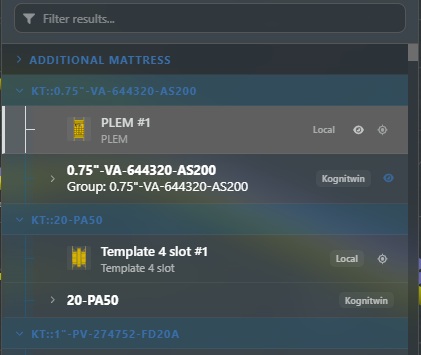
The screenshot above shows that the search term has returned a hit from KogniTwin as a data source. You can click on the result to launch the File Viewer.
File Viewer
When you have a link to a data source result from search, annotations, or linked objects such as assets etc. you can then view the data in the file viewer as shown below where a search operation returned a result from the KogniTwin datasource:
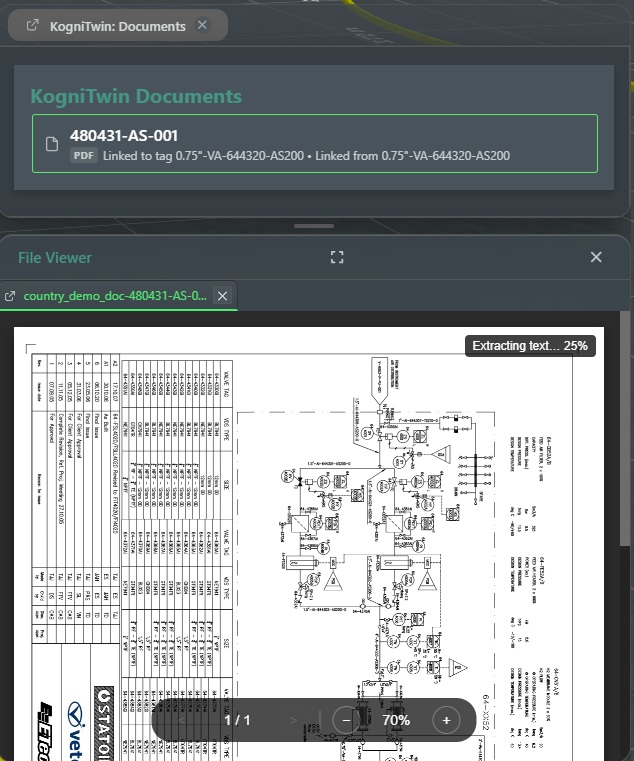
The available file viewer commands from left to right are as shown at the bottom of the above screenshot are:
Pagination - This allows you to change pages in a multi-page document by clicking on the left or right arrows situated around the page counter.
Zoom Out Click om the - button to zoom out or + button to zoom in on the document or drawing.
Pan - Just click on and hold down the left mouse button while you move the hand pointer around to pan.
You also have the following functionality available:

Maximize - Click on the "[]" icon to maximize the viewing area.
Close Viewer - Click on the "X" icon to close the file viewer.
Open in new Window - By clicking on the icon to the left of the file name it will open in a new browser window outside of FieldTwin Operate.