Object Details
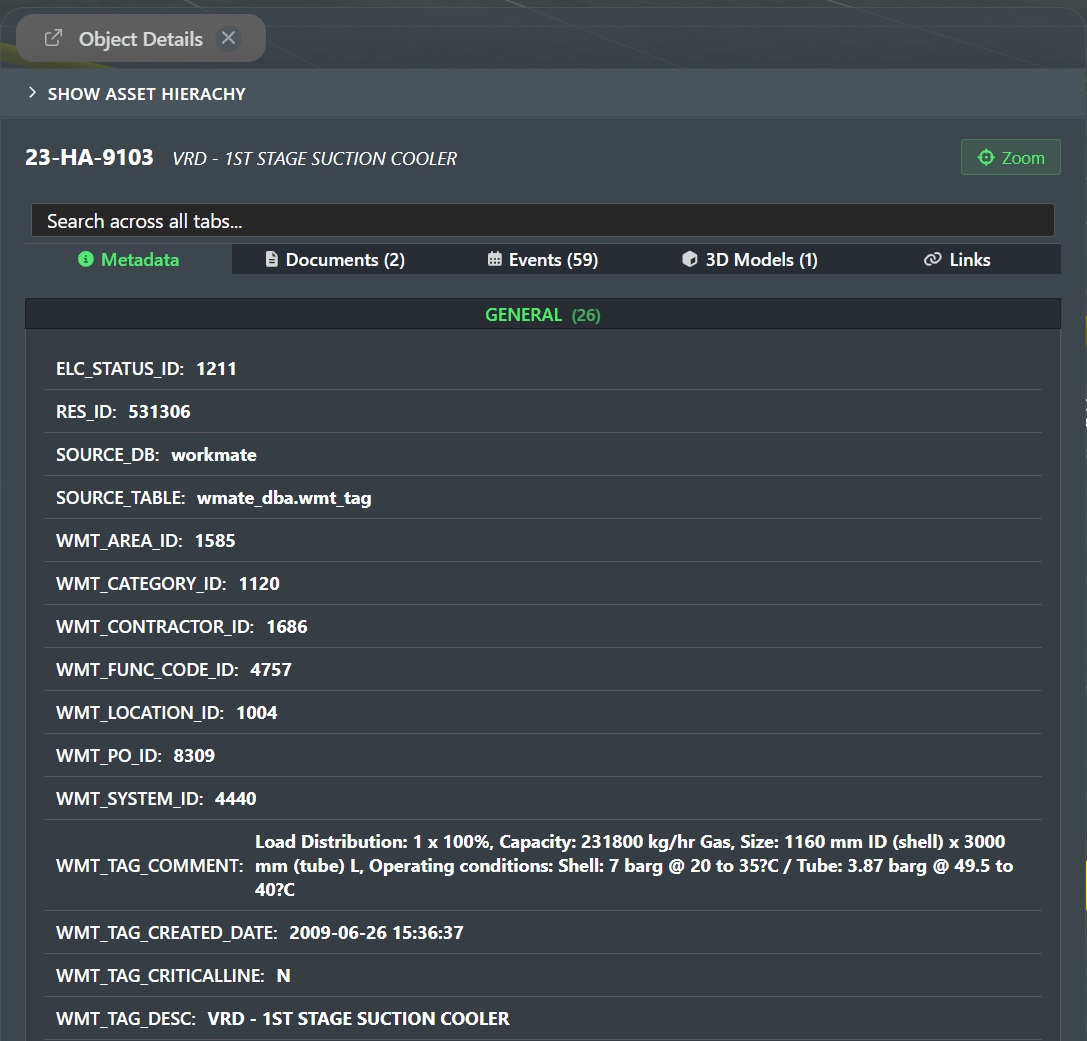
Double click on any asset, pipeline, structure etc. and FieldTwin Operate will display the Object Details window as shown below if data exists for the object:
Object Commands
The top part of the window as shown here:

has the following commands:
Pop Out Window - The icon to the left of the Object Details title caption will pop out the window so it becomes standalone.
x - Click on this icon to close the Object Details window.
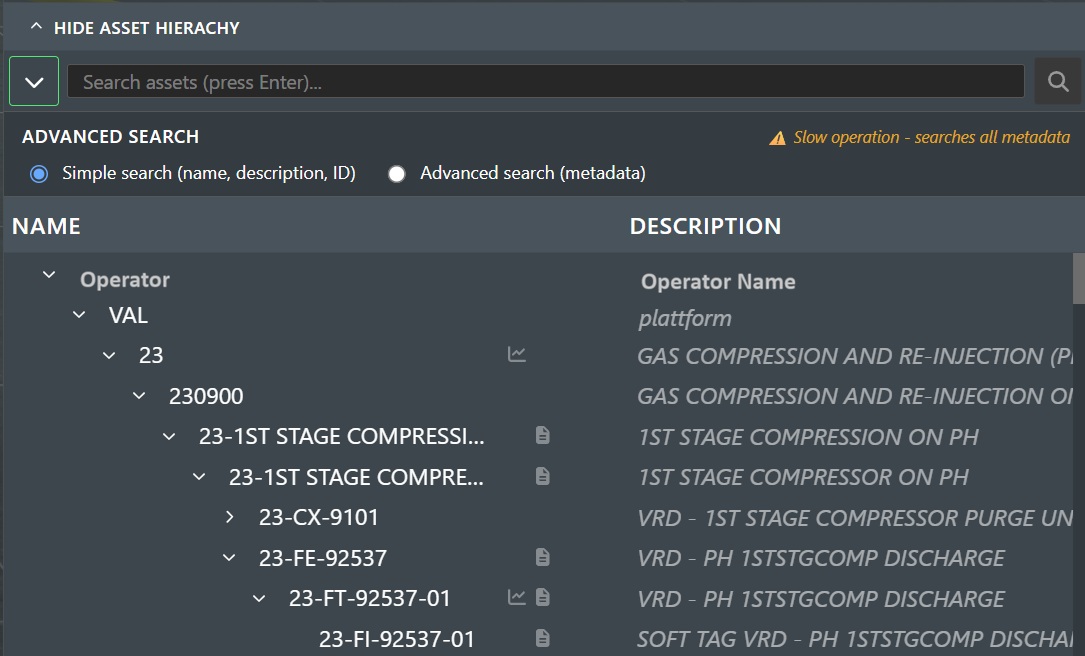
Show Asset Hierarchy
Click on this to expand and display the asset hierarchy for the selected object as shown here:
Zoom

This button will zoom into the selected object by clicking on it and positioning it to the left of the Object Details window.
Object Tabs
Based on the information associated and/or linked to the selected object a series of Object Tabs will be displayed e.g. Metadata, Documents, Events, 3D Models, and Links.

Search - Start typing into this field and search results will start to be displayed as you type from all object tabs.
Metadata
The metadata tab looks as follows and displays all associated metadata values:
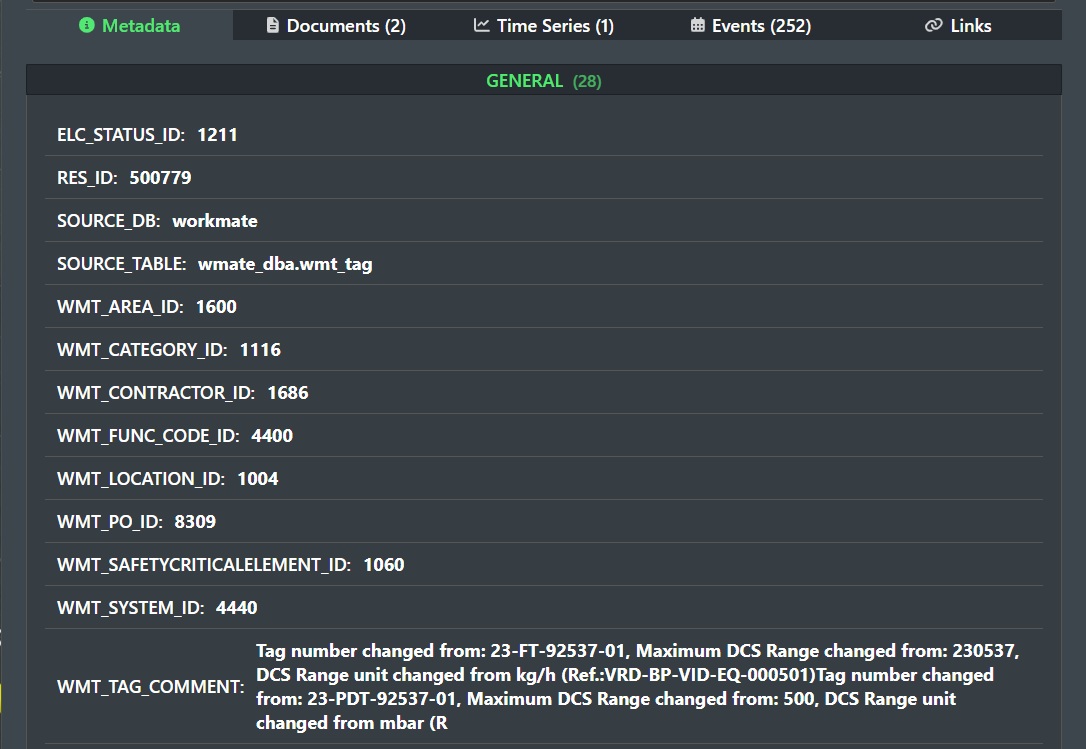
The display is informational only.
Documents
The documents tab looks as follows and shows all associated documents:

Click on any document in the list to launch the built in File Viewer.
Time Series
The time series tab looks as follows and shows all associated time series for the object:
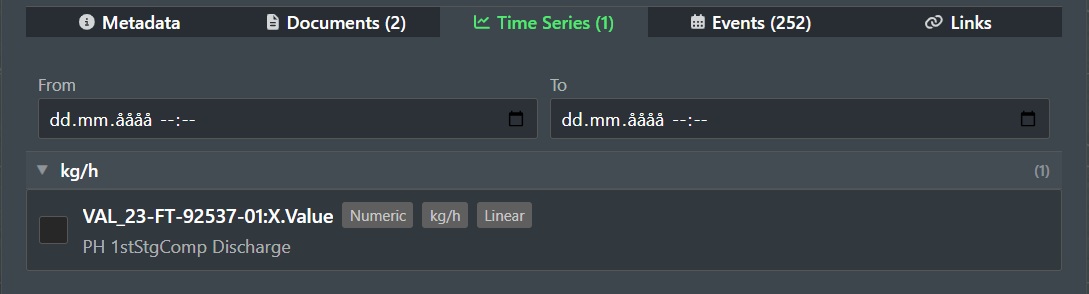
From - Here you can enter an optional start date and time in the format dd.mm.yyyy hh.mm.
To - Here you can enter an optional end date and time in the format dd.mm.yyyy hh.mm.
Clear - Click this button to clear the optional date and time range.
Listed Time Series - Check the box next to the time series you want to launch the Time Series Viewer.
Events
The events tab looks as follows and shows all associated events recorded for the object:
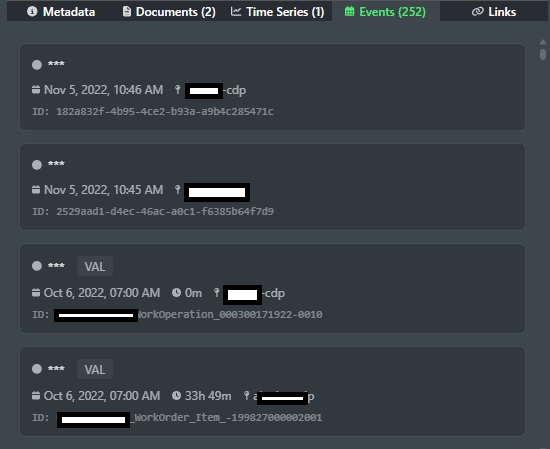
This is a view only list!
Links
The links tab looks as follows and shows all associated customs links for the object:
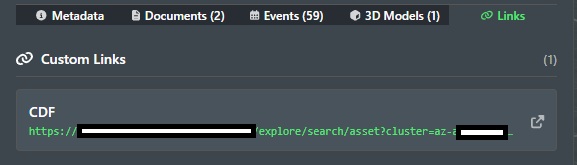
Launch Arrow - Click on the launch arrow icon at the end of the custom link listing to open the custom link.
3D Models
Note! The 3D model tab will only be displayed if a 3D model with view capabilities is supported for a connected data source such as CDF as an example.
The 3D model tab looks as follows:
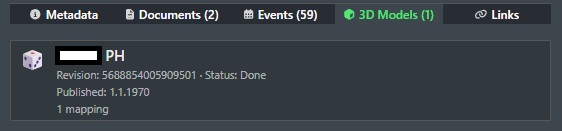
Click on the list entry to launch viewing of it using the supported viewer if any!